Kafka Writer
Note
Kafka Writer versions 0.11 and 2.1.1 are no longer supported. As part of upgrading to Striim 5.4.x, all Kafka Writer adapters in created or quiesced applications will be upgraded to the new versions of the adapter and corresponding connection profiles will be created. If after upgrading you need to import TQL exported from Striim 5.2 or earlier, edit the TQL before importing to use the new properties, and create a connection profile with the appropriate properties. For more information, see Upgrading Existing Applications that use Kafka Writer.
Kafka Writer supports writing to one or more topics in a Kafka cluster in Apache Kafka, Amazon MSK, Confluent Cloud, or Confluent Platform versions 2.0.0 to 4.0.1.
Building a pipeline with Kafka Writer
You can read from any Striim-supported source and write to Kafka using the Kafka Writer. In some cases, you may need to add an intermediate processing step to convert the output type to a format that is supported by Kafka writer.
Configuring the Kafka target involves the following steps:
Configure the Kafka Connection Profile with the respective properties.
Decide the authentication type that best suits your needs.
Decide if you want to encrypt your data.
If you also need client side authentication, Mutual TLS (mTLS) is available.
Understand the data distribution requirements.
Configure the “Topics” property with one or more topics.
Decide how you want to partition the data within the topic and set the “Partition key”. If the partitioning is based on Message Keys, then set “UseMessageKeyAsPartitionKey” to true.
Decide if the topics are going to be precreated or auto created by the target.
Message semantics requirements
By default, the writer has “E1P” set to true (which needs recovery to be turned ON), this needs an extra checkpointing topic (if it does not exist, the writer will create it)
You can choose to turn this OFF. While turned off, A1P will be the expected semantics.
Design your Kafka Message
Choose the Header, Keys (can be custom or primary keys) to be added in the Kafka message.
Choose the formatter of your choice
If you are moving data from OLTP or OLAP source, AvroFormatter can now give closer type mapping if the initial schema was moved along with the Initial Load before moving the CDC data
With Avroformatter, choose the format of the DML record (Default/Native/Table) as per your downstream application needs.
Choose your serializer - Striim or Confluent.
When using Schema Registry, pre-register your AvroSchema. If the schema is not found, AvroFormatter, pre-create the corresponding schema. See this section on external schema format for more details.
Decide how you want to handle the DDL from an OLTP source: Auto or Manual
Fine tune your performance by increasing the number of parallel threads if required. This will also have an impact on the amount of memory used by the target.
Before starting to build a pipeline with Kafka writer, here are some key considerations to keep in mind.
Connection profiles for Kafka Writer
Kafka Writer requires the use of connection profiles to connect to Kafka and the Confluent schema registry.
Kafka connection profiles support the following authentication methods:
AWS_MSK_IAM
GSSAPI
Mutual TLS
None
PLAIN
SCRAM_SHA_256
SCRAM_SHA_512
Confluent Schema Registry connection profiles support the following authentication methods:
Basic
Confluent Cloud API
Mutual TLS
None
For instructions on creating a connection profile, see Connection profiles. Detailed instructions for each authentication method are available in the inline help when you create or edit a connection profile.
Vault Support with Kafka Connection Profile
To securely reference configurations in a Kafka Connection Profile, you can store the necessary certificates and keys in the Vault. We recommend that you pass any private or public keys or JAASConfig which involves a password via a vault value.
To use the Striim Vault. Follow these steps:
Step 1: Create a New Vault
If you do not have a vault already, create one as described in Using vaults.
Step 2: Upload Certificate Files
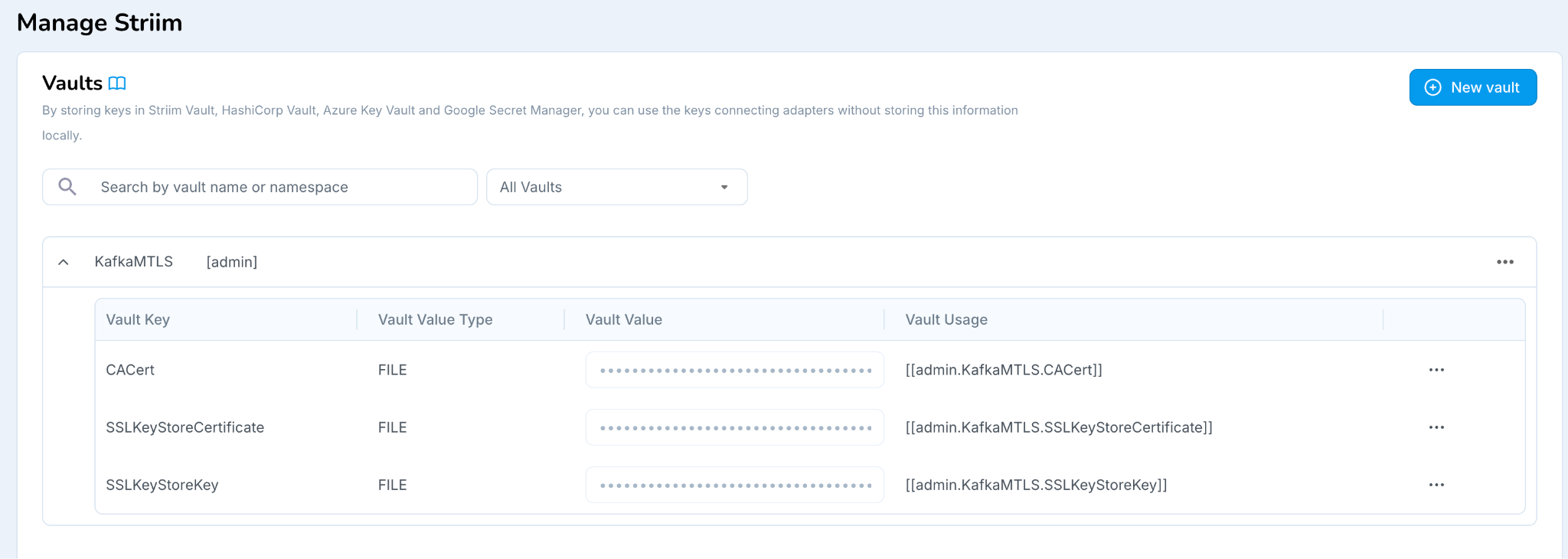 |
Upload the following files as FILE type:
CA Certificate File
SSL KeyStore Key
SSL KeyStore Certificate
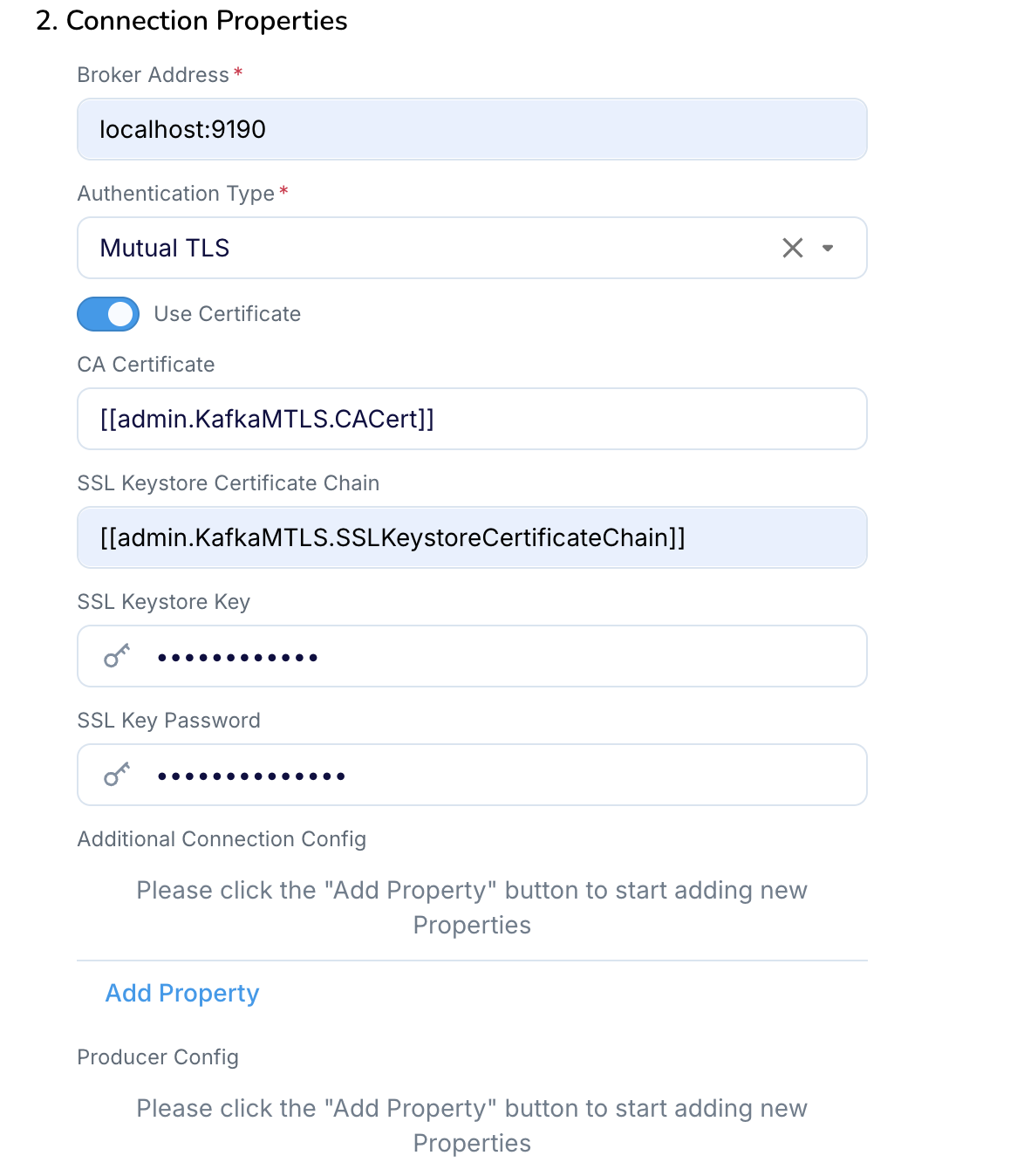
Step 3: Configure the Kafka Connection Profile
In the Kafka Connection Profile, reference the uploaded Vault entries by entering the appropriate Vault and keys for:
 |
Certificate rotation for Kafka Writer
Striim supports seamless certificate rotation to maintain secure communication and Certificate rotation policies.
New server and client certificate pairs can be generated and applied to a Kafka Connection Profile, even when applications using the connection profile are running.
Striim provides the facility for certificate rotation for enhanced Security via Connection Profile only.
Note : The rotated certificates will be used by the adapters when the adapter hits some exception and retries or on application restart .
Navigate to Manage Striim → Connection Profiles.
Locate the Connection Profile in use and click Edit.
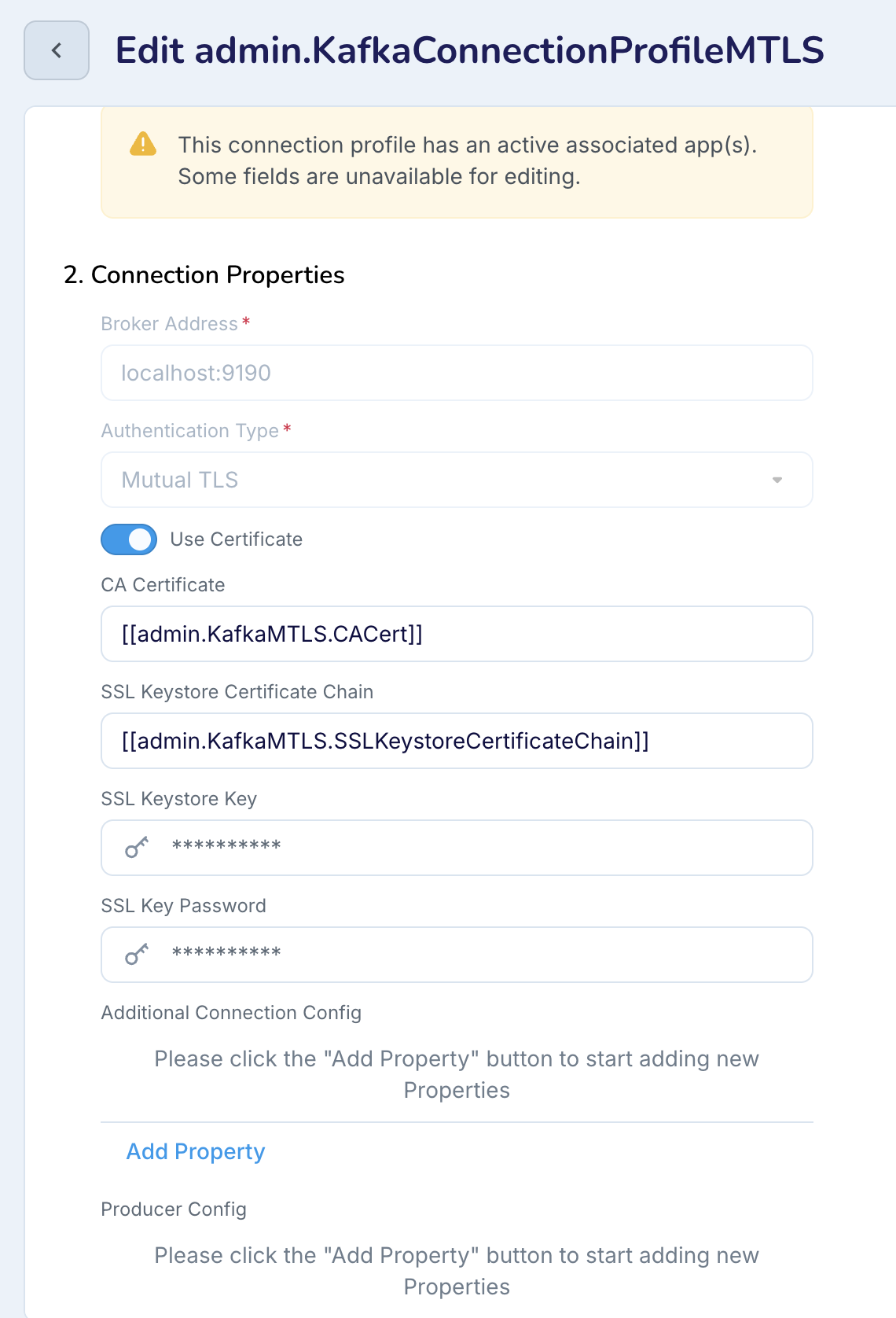
Upload or reference the new certificate and key files
Save the changes to apply for the new certificates.