Db2 for z/OS initial setup for CDC
Db2 for z/OS system requirements
Performing CDC from Db2 for z/OS with Striim requires a Linux server to host the Db2 Connect client (with Db2 Connect license applied) and Striim Agent for Db2 for z/OS and, depending on your environment, possibly also PostgreSQL and Confluent. Kafka and curl must be installed.
Db2 for z/OS setup overview
The following are prerequisites for setting up CDC from Db2 for z/OS:
Purchase a Striim Db2 for z/OS Support license. Striim will then procure you a Striim Agent for Db2 for z/OS license.
Install the stored procedures provided by Striim in Db2 for z/OS.
Transfer the program binaries (MVSLOAD.BIN) to the Mainframe server and perform a TSO Receive Operation.
APF authorise the received Load library. ( This task may need to be executed with z/OS System Programmer or z/OS System Administrator personnel.)
Define the Load library to the Db2 Application environment.
Define the DB2 User defined function.
Get Db2 Connect (see Db2 Connect overview) from IBM and install the Db2 client and IBM ODBC driver on the Linux host where you will install Striim Agent for Db2 for z/OS.
Have an Oracle or PostgreSQL repository for use by Striim Agent for Db2 for z/OS.
Install the ODBC driver for the Oracle or PostgreSQL repository on the Linux host where you will install Striim Agent for Db2 for z/OS.
Provision Kafka to receive data from the Striim Agent for Db2 for z/OS. See Enabling external Kafka access.
Enable the Karapace schema registry. See Enabling Schema Registry.
In Db2 for z/OS, if any tables to be captured do not have primary keys, add them. (Striim Agent for Db2 for z/OS cannot capture change data from tables without primary keys.)
In Db2 for z/OS, enable data capture flags.
Populate the configuration file. This is required by the setup script in the next step.
Run the script to Install, configure, and start Striim Agent for Db2 for z/OS.
Create and deploy a Striim application including the Kafka-persisted stream to which Striim Connect will write the data captured by Striim Agent for Db2 for z/OS. The persisted stream details must be specified in the configuration file in the next step.
Allow-list the IP address of the machine running Striim Agent for Db2 for z/OS in the Striim Cloud console.
Download and install the mTLS certificates required for secure communication between Striim Agent for Db2 for z/OS and the Striim Cloud Kafka cluster.
1. Purchase Striim Db2 for z/OS Support license
Contact Striim Sales to purchase Db2 for z/OS Support.
2. Install the stored procedures in Db2
This part of the setup requires expertise in IBM z/OS mainframe administration. It involves loading binary file(s) onto the mainframe and implementing (installing) the binary file(s) as datasets and load libraries on the mainframe. The load library contains JCL (Job Control Language) scripts, which will be called and used via the Db2 stored procedure. This is the stored procedure that will be added onto the Db2 database once the load library has been properly loaded onto the mainframe. Our recommendation is to have your mainframe administrator handle this setup. Alternatively, you may engage Striim professional services.
Contact Striim Support for detailed instructions for performing this step, which requires a z/OS terminal emulator.
After completing the mainframe setup, load the stored procedure by running the following command in the SQL command executor of your choice, replacing <environment name> with the name of your WLM application environment (for example, WLM ENVIRONMENT DBDGENVG.
CREATE FUNCTION TCVUDT_V7 (VARBINARY(300),VARBINARY(32000))
  RETURNS TABLE (OUTVALUE BLOB(200K))
PARAMETER CCSID EBCDIC
EXTERNAL NAME TCSD2UDT
LANGUAGE ASSEMBLE
PROGRAM TYPE SUB
STAY RESIDENT YES
CONTINUE AFTER FAILURE
WLM ENVIRONMENT <environment name>
RUN OPTIONS
'H(,,ANY),STAC(,,ANY,),STO(,,,4K),BE(4K,,),LIBS(4K,,),ALL31(ON)'
PARAMETER STYLE SQL
NO SQL
NO EXTERNAL ACTION
FENCED
SCRATCHPAD
FINAL CALL
DISALLOW PARALLEL;
3. Get and install Db2 client
Contact IBM to purchase Db2 Connect (see Db2 Connect overview). This includes support for secure SSL / TLS connections with Striim. IBM offers several distributions, including the full Client, Runtime Client, and the ODBC and CLI package. We recommend using the IBM Data Server Driver for ODBC and CLI version 11.5.9 (or a later version of 11.5, if available), as it is the most lightweight option and requires the least installation effort. You may download it from DB2 ODBC CLI driver Download and Installation information.
Perform the following steps on the Linux host where Striim Agent for Db2 for z/OS is installed.
Create a directory for the installation of the IBM Data Server Driver for ODBC and CLI software.
mkdir $HOME/db2_cli_odbc_driver
Copy the IBM Data Server Driver for ODBC and CLI software (vxx_xx_odbc_cli.tar.gz) into the above directory.
cp vxx_xx_odbc_cli.tar.gz $HOME/db2_cli_odbc_driver
Extract the IBM Data Server Driver for ODBC and CLI.
tar -xvf vxx_xx_odbc_cli.tar
Export the following environment variables.
export DB2_CLI_DRIVER_INSTALL_PATH=$HOME/db2_cli_odbc_driver/odbc_cli/clidriver
export LD_LIBRARY_PATH=$HOME/db2_cli_odbc_driver/odbc_cli/clidriver/lib
export LIBPATH=$HOME/db2_cli_odbc_driver/odbc_cli/clidriver/lib
export PATH=$HOME/db2_cli_odbc_driver/odbc_cli/clidriver/bin:$PATH
export PATH=$HOME/db2_cli_odbc_driver/odbc_cli/clidriver/adm:$PATH
To connect to the Db2 for z/OS server, download the Db2 Connect license file db2consv_xx.lic and copy it to the license folder.
$HOME/db2_cli_odbc_driver/odbc_cli/clidriver/license
To configure the driver with a new connection:
Add the database.
db2cli writecfg add -database <database name> -host <IP address> -port <port>
Add the data source name (dsn).
db2cli writecfg add -dsn db2z13 -database <database name> -host <IP address> -port <port>
You can then test the connection with the following command.
db2cli validate -dsn db2z13 -connect -user <user name> -passwd <password>
4. Select the Oracle or PostgreSQL instance to host the Striim Agent for Db2 for z/OS repository
Striim Agent for Db2 for z/OS requires an Oracle or PostgreSQL instance to host its repository. If you do not have an Oracle or PostgreSQL instance available to host the Striim Agent for Db2 for z/OS repository, we recommend installing PostgreSQL (a free open-source DBMS). You may install it on the same Linux server you use to host Striim Agent for Db2 for z/OS. Create a new schema to hold the repository database.
Also install the ODBC driver for the repository database in the Striim Agent for Db2 for z/OS host. For Oracle, see DB2 ODBC CLI driver Download and Installation information. For PostgreSQL, use your Linux environment's package manager, such as yum or apt-get.
5. Install the ODBC driver for the repository
Install the ODBC driver for the Oracle or PostgreSQL repository on the Linux host where you will install Striim Agent for Db2 for z/OS.
6. Provision Kafka to receive data from the Striim Agent for Db2 for z/OS
Enable external Kafka access for publishing data so that Striim Agent for Db2 for z/OS can publish CDC events to the Striim Cloud Kafka cluster.
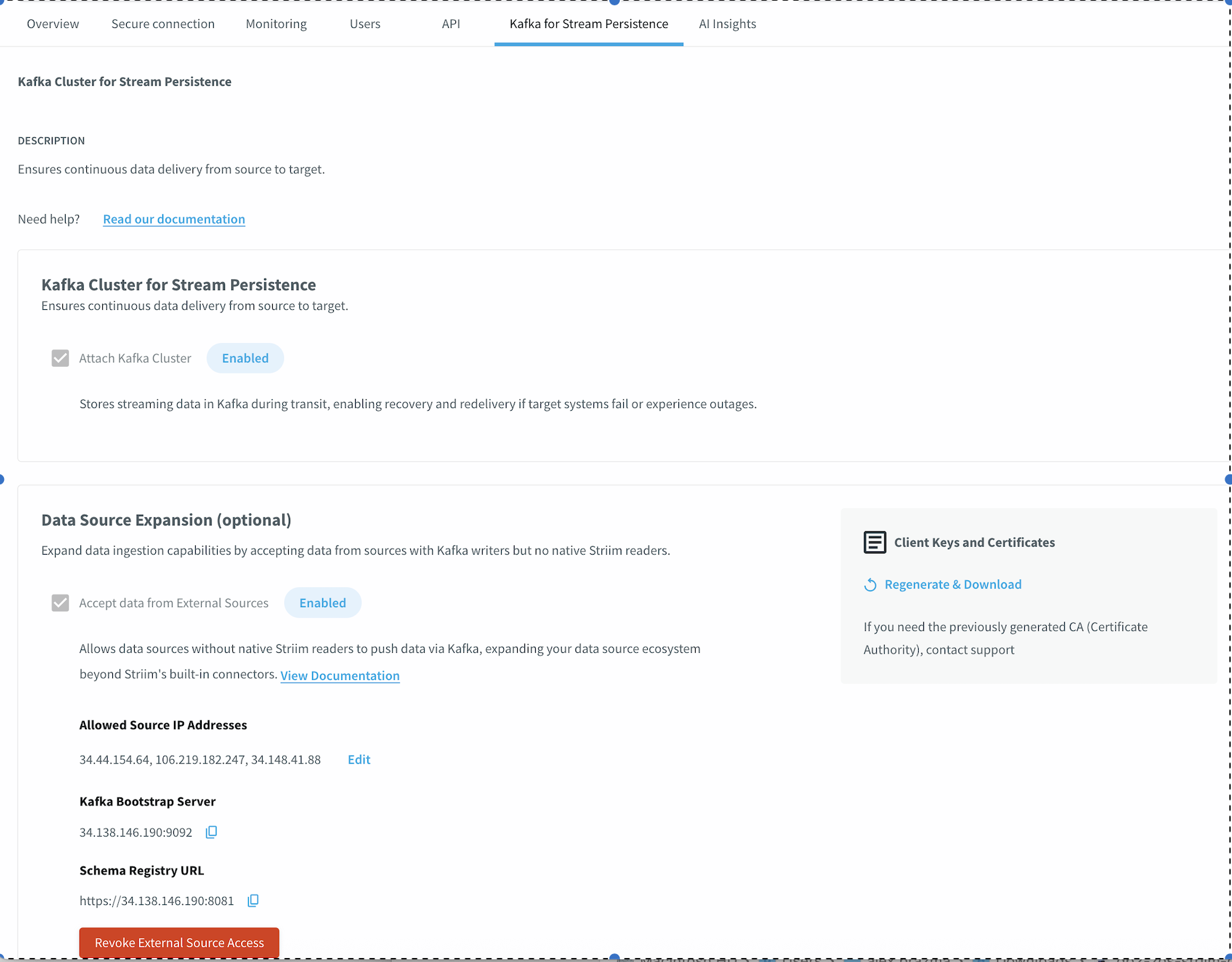
In the Striim Cloud console, go to the Kafka for Stream Persistence tab.
Under Kafka Cluster for Stream Persistence, select Attach Kafka Cluster.
Under Data Source Expansion, select Accept data from External Sources.
In the Allowed Source IP Addresses field, enter the IP address of the machine where Striim Agent for Db2 for z/OS is running. To specify multiple IP addresses, separate them with commas.
Click Attach.
After the Kafka cluster is attached, the console displays the Kafka Bootstrap Server address and Schema Registry URL. Record these values for use in the Striim Agent for Db2 for z/OS configuration file.
7. Enable the Karapace schema registry
The Karapace schema registry is automatically provisioned when you enable external Kafka access in the previous step. The Schema Registry URL is displayed on the Kafka for Stream Persistence tab after attachment. Use this URL when configuring the SCHEMA_REGISTRY property in the Striim Agent for Db2 for z/OS configuration file and the schemaRegistry property in the Striim application TQL.
8. Add primary keys
In Db2, if any tables to be captured do not have primary keys, add them. (Striim Agent for Db2 for z/OS cannot capture change data from tables without primary keys.) Note that the VARBINARY type is supported in composite primary keys only if it is the last column in the key.
9. Enable capture flags
In Db2, enable capture flags by executing the following command for each table to be captured:
ALTER TABLE <schema>.<table name> DATA CAPTURE CHANGES
10. Populate the Striim Agent for Db2 for z/OS configuration file
When configuring Striim Agent for Db2 for z/OS for Striim Cloud, use the Kafka Bootstrap Server address and Schema Registry URL from the Striim Cloud console. Set KAFKA_USESSL to true and specify the paths to the mTLS certificate files downloaded in step 14.
The setup script you will run in the next step requires a configuration file with the following contents. In this context, localhost is the system running Striim Agent for Db2 for z/OS.
Property name | Description | Syntax | Example(s) |
|---|---|---|---|
LIBRDKAFKA_PATH | path to the Kafka shared object library for Linux | absolute file path to Kafka library (librdkafka.so) | /usr/lib/x86_64-linux-gnu/librdkafka.so.1 |
LIBCURL_PATH | path to the curl shared object library for Linux | absolute file path to CURL library (libcurl.so) | /usr/lib/x86_64-linux-gnu/libcurl.so.4 |
LICENSE_PATH | path to the Striim Agent for Db2 for z/OS license file (to be provided by Striim Support) | absolute file path to Striim Agent for Db2 for z/OS license file | /home/ubuntu/License.tcVLC |
REPO | database type of the Striim Agent for Db2 for z/OS repository host | ORCL for Oracle Database or PSQL for PostgreSQL | PSQL ORCL |
REPO_HOST | Striim Agent for Db2 for z/OS repository database hostname | IP Address or hostname | localhost 192.168.0.5 |
REPO_PORT | Striim Agent for Db2 for z/OS repository database port | port number | 1521 5432 |
REPO_DB | Striim Agent for Db2 for z/OS repository database name | database name | ORCL postgres |
REPO_ID | Striim Agent for Db2 for z/OS repository database user id | SQL ID for repository database | admin postgres |
REPO_SCHEMA | the name of the schema you created in step 4 to be used exclusively for the Striim Agent for Db2 for z/OS repository | repository database schema name | SA4DB2 |
HOSTNAME | host name of load-balancer-backed DNS or floating alias | network name | dns.load-balancer.db2.agent.striim.com |
SHARED_PATH | local system path to mounted NFS for checkpoint data | path | /mnt/nfs/db2 |
Example configuration file
Example configuration file with PostgreSQL repository:
# -----------------------------
# Library Paths
# -----------------------------
LIBRDKAFKA_PATH=/usr/lib/x86_64-linux-gnu/librdkafka.so.1
LIBCURL_PATH=/usr/lib/x86_64-linux-gnu/libcurl.so.4
LICENSE_PATH=/home/ubuntu/License.tcVLC

# -----------------------------
# Repository Configuration
# -----------------------------
REPO=PSQL
REPO_HOST=localhost
REPO_PORT=5432
REPO_DB=postgres
REPO_ID=postgres
REPO_SCHEMA=rdrs

# -----------------------------
# High Availability Configuration
# -----------------------------
HOSTNAME=dns.load-balancer.db2.agent.striim.com
SHARED_PATH=/mnt/nfs/db2
11. Run the Striim Agent for Db2 for z/OS setup script
Once all the above steps have been completed, enter the following command to install and configure Striim Agent for Db2 for z/OS and initialize the Striim Agent for Db2 for z/OS repository database:
setupDb2.sh -a full -r <Striim Agent for Db2 for z/OS repository password> -p <path to configuration file>
After installation is complete, optionally, to run the agent as a service:
Go to the RDRS directory and run chmod for two service scripts:
chmod 777 RegService.sh
chmod 777 RegRestService.sh
Run the two service scripts:
sudo ./RegService.sh
sudo ./RegRestService.sh
Check the status of the services:
sudo systemctl status rdrs.service
sudo systemctl status rdrsrest.service
When running as a service, the API server will be on port 3080 instead of 8080.
12. Create and deploy the Striim application
You may create a Db2 for z/OS CDC application using Flow Designer or TQL. A Db2 external source has the following properties:
property | type | default value | notes |
|---|---|---|---|
Data Format | Enum | Avro External Db2 for z/OS | Do not change this setting. |
Database Alias | String | Specify the database alias (or name) registered in Db2 Client, for example, DBNAME. | |
Db2 Agent | String | Specify the IP address or network name and port of the Striim Agent for Db2, for example, | |
Enable Db2 Dumps | Boolean | False | If set to True, generates z/OS system log dumps inside the Striim Agent for Db2 system. This may be useful for debugging. |
Enable Tracing | Boolean | False | If set to True, generates verbose tracing logs inside the Striim Agent for Db2 system. This may be useful for debugging. |
Kafka Max Message Size | Integer | 1048576 | Maximum message size in bytes. If the message size exceeds this value, the application and Striim Agent for Db2 will halt. Important: if you increase this value, you must also adjust the following Kafka parameters: Broker settings: message.max.bytes and replica.fetch.max.bytes must be greater than or equal to Kafka Max Message Size; log.segment.bytes must be greater than Kafka Max Message Size. Consumer settings: fetch.message.max.bytes and max.partition.fetch.bytes must be greater than or equal to Kafka Max Message Size; receive.message.max.bytes must be greater than or equal to Kafka Max Message Size plus protocol overhead. |
Kafka Property Set | Enum | Select the property set for the Kafka instance: see step 6 above. | |
Password | encrypted password | The password for the specified user. See Encrypted passwords. | |
Schema Registry | String | Specify the URI for the schema registry: see step 7 above. | |
Schema Registry Config | String | Specify any necessary configuration properties for the schema registry. See CREATE EXTERNAL SOURCE. | |
SSL Certificate Authority Path | String | Appears in UI only when Use Kafka SSL is True. Specify the path to the CA certificate on the Striim Agent for Db2 host. | |
SSL Client Certificate Path | String | Appears in UI only when Use Kafka SSL is True. Specify the path to the client certificate on the Striim Agent for Db2 host. | |
SSL Key Password | encrypted password | Appears in UI only when Use Kafka SSL is True. Specify the password for the SSL key. | |
SSL Key Path | String | Appears in UI only when Use Kafka SSL is True. Specify the path to the SSL key on the Striim Agent for Db2 host | |
Start Position | String | If blank, reading will start with new data. Optionally, to start at an earlier posiiton, specify a hex string of a LRSN or RBA value. If you need to specify a different start position, you must first drop and re-create the application. | |
Tables | String | Specify the tables, views, or materialized query tables to be read using the syntax You may specify multiple tables and views as a list separated by semicolons or with the If you change this value after starting the application, tables will be read only after the point in time of the recovery checkpoint. | |
UDT Function Location | String | If the RACF (Db2) ID is IBMUSER, but the Stored Procedure (UDT Function) is NOT inside the IBMUSER schema, specify the location in the format | |
Use Kafka SSL | Boolean | False | Set to True to use SSL. |
Username | String | Specify the Db2 user Striim will use to read data. |
The following example TQL creates the application using the admin.MTLSCloudKafkaProperties property set, which is pre-configured with the mTLS certificates required for secure communication with the internal Kafka cluster. You can view the values in this property set by navigating to Manage Striim > Property Sets and selecting MTLSCloudKafkaProperties.
Before configuring the TQL, determine the <id> value for the UploadedFiles path by navigating to Manage Striim > Property Sets and inspecting the MTLSCloudKafkaProperties property set. The <id> appears in the keystore and truststore file paths.
USE ns1;
CREATE APPLICATION Db2zOS_CDC;

CREATE STREAM Db2zOSStream OF WAEvent
  PERSIST USING admin.MTLSCloudKafkaProperties;

CREATE EXTERNAL SOURCE Db2zOSReader (
  connector: 'db2',
  dataFormat: 'AvroExternalDb2zOS',
  schemaRegistry: 'https://schema-registry.kafka.svc.cluster.local:8081',
  SchemaRegistryConfig: 'ssl.keystore.location=/opt/striim/UploadedFiles/<id>/kafka.client.keystore.jks,
    ssl.keystore.password=<password>,
    ssl.key.password=<password>,
    ssl.truststore.location=/opt/striim/UploadedFiles/<id>/kafka.client.truststore.jks,
    ssl.truststore.password=<password>'
)
OUTPUT TO Db2zOSStream;

END APPLICATION Db2zOS_CDC;
13. Allow-list the Striim Agent for Db2 for z/OS
The IP address of the machine running Striim Agent for Db2 for z/OS must be allow-listed in the Striim Cloud console so that the agent can publish CDC events to the Kafka cluster. If you specified the agent's IP address during Kafka provisioning in step 6, this step is already complete.
To update the allowed IP addresses after initial provisioning:
In the Striim Cloud console, go to the Kafka for Stream Persistence tab.
Under Data Source Expansion, click Edit next to the displayed Allowed Source IP Addresses.
Add or remove IP addresses as needed. Separate multiple IP addresses with commas.
Save the changes.
14. Download and install mTLS certificates
Striim Cloud uses mTLS (mutual TLS) certificates to secure communication between Striim Agent for Db2 for z/OS and the Kafka cluster. You must download the certificate files from the Striim Cloud console and configure Striim Agent for Db2 for z/OS to use them.
In the Striim Cloud console, go to the Kafka for Stream Persistence tab.
Under Data Source Expansion, locate the Client Keys and Certificates section.
Click Regenerate & Download to download the certificate bundle. Extract the ZIP file to obtain three files:
ca.crt,client.crt, andclient.key.Copy these files to the machine running Striim Agent for Db2 for z/OS.
In the Striim Agent for Db2 for z/OS configuration file, set the
KAFKA_SSLCLIENTCERT,KAFKA_SSLCERT,KAFKA_SSLKEY, andKAFKA_SSLKEYPWDproperties to the paths and password for the downloaded certificate files.
Note
The CA certificate (ca.crt) can only be downloaded during initial generation. If you need the previously generated CA certificate, contact Striim support to obtain a replacement. The client certificate and key files can be regenerated and downloaded at any time.
Note
When a certificate expires, download the renewed certificates using Regenerate & Download and update them on the Striim Agent for Db2 for z/OS host.
Enabling SSL / TLS between Db2 and Striim Agent for Db2 for z/OS
See Configuring connections under the IBM Data Server Driver for JDBC and SQLJ to use TLS.