Initial setup for GCS Reader
Initial setup ensures Striim can read from the correct Google Cloud Storage bucket with least-privilege access and, when needed, use Audit Logs for change detection. You will create or reuse a Google service account, grant it storage (and optional audit-log) permissions, generate a JSON key, then point Striim to that key and save the settings as a reusable connection profile.
Prerequisites
The following prerequisites are needed before configuring the GCS Reader:
Service account: To access Google Cloud Storage you need valid user credentials with authorization.
To use the GCSAuditLogNotification object detection mode, you must configure the audit log and users with necessary permission to access the logs.
Setting up Google Cloud Storage permissions
You must configure the following Google Cloud Storage permissions depending on which object detection modes you will use:
To enable reading files from Google Cloud Storage, you must create a custom Google Cloud Storage role with get and list permissions and assign it to your Service Account.
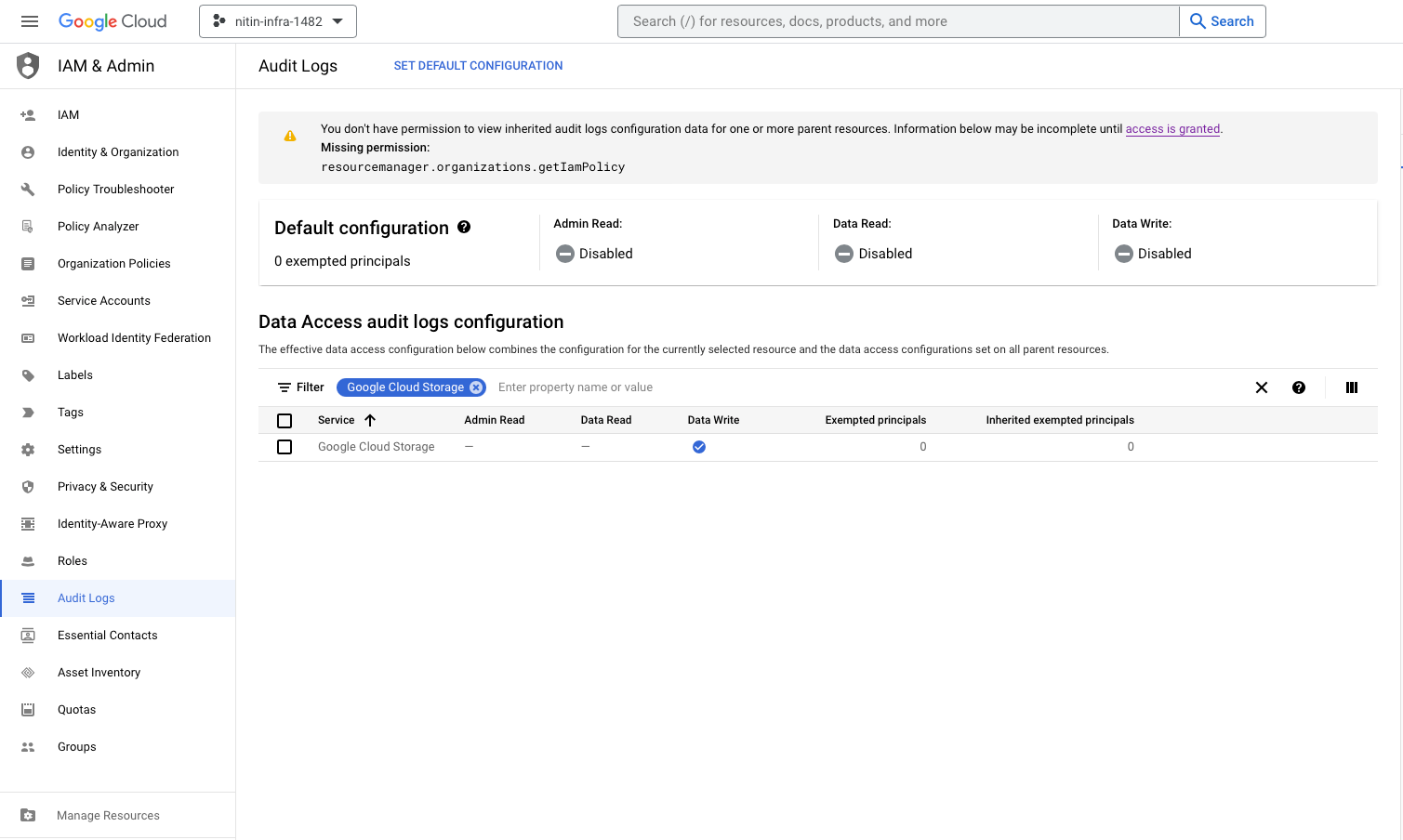
To enable reading the audit log on Google Cloud Storage, you must enable the audit log and grant audit log permissions to your custom role.
If audit log access is needed, check the Data Write property to enable the audit log on GCS.
Create a custom role with the following permissions:
GCS permissions:
storage.objects.getandstorage.objects.listGCS audit log permissions (if Audit Log access needed):
logging.logEntries.listandlogging.privateLogEntries.list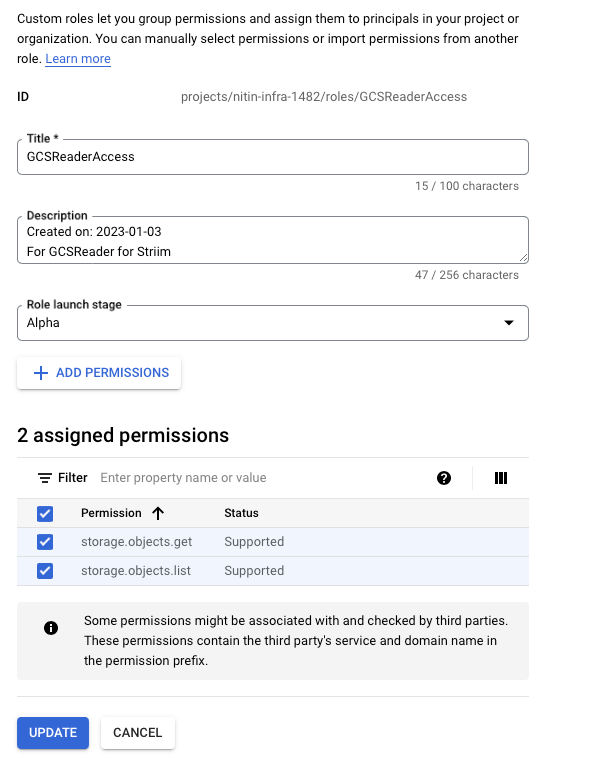
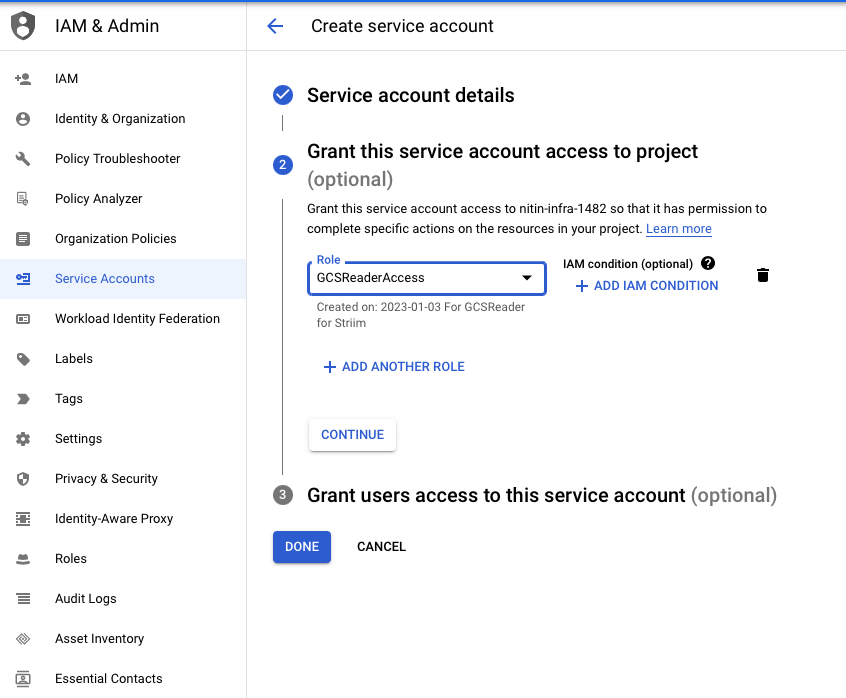
Create a Service Account and assign this custom role.
Generate the Service Account key in JSON format.
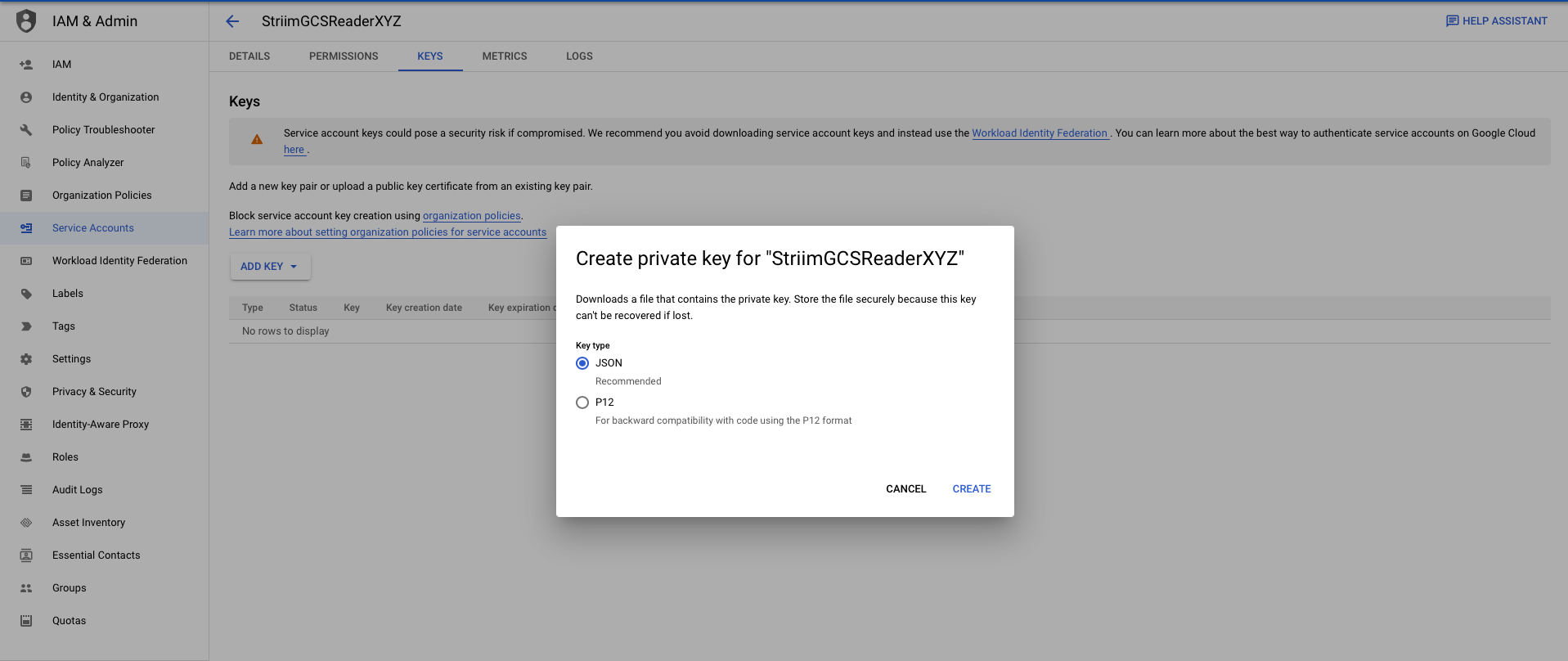
In your Striim GCS Reader configuration, copy the downloaded JSON key path to the
Service Account Keyproperty.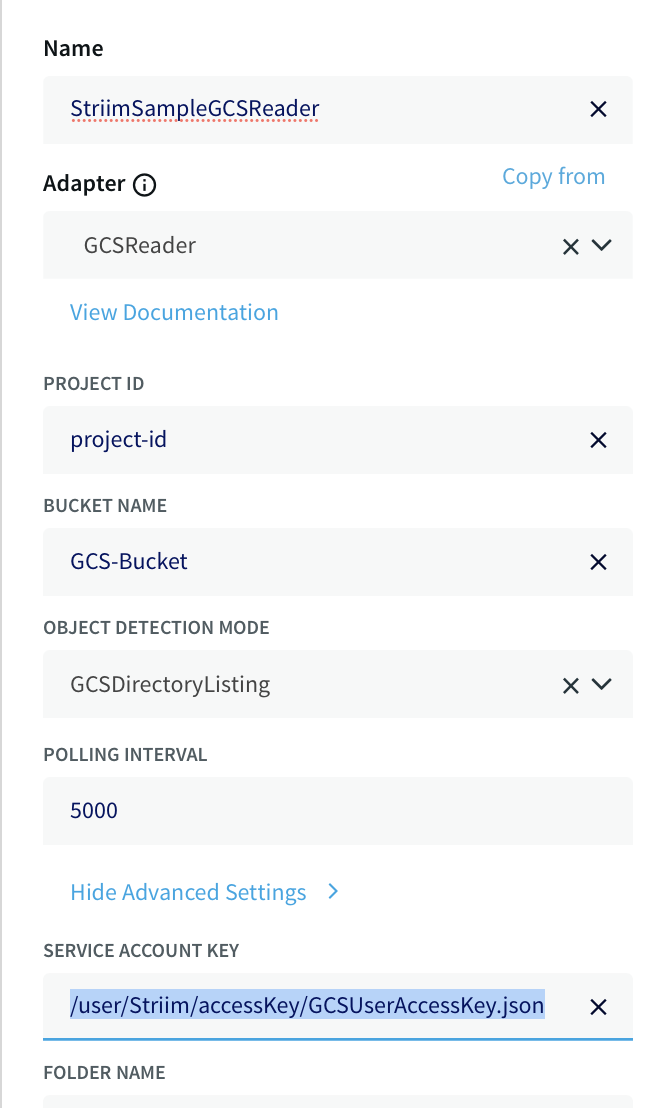
Configuring Striim to work with GCS Reader
All clients and drivers required by GCS are bundled with Striim. No additional setup is required.
Configuring a Striim connection profile
Create a reusable connection profile for GCS credentials and network settings, then select it when you add a GCS Reader in Flow Designer or a wizard.
In the Striim UI, open Connection Profiles and click Create Profile.
Enter a Name and (optional) Description. For Type, select Google Cloud Storage.
Provide the following:
Project Id: The Google Cloud project that owns the bucket.
Service Account Key: Path to the JSON credentials file (or upload the file).
Private Service Connect Endpoint (optional): The PSC endpoint to use for private access.
Click Test Connection. Resolve any validation errors, then click Save.
When creating a GCS Reader, choose Use connection profile and select the saved profile. You can still override adapter-level properties such as Bucket Name, Folder Name, and Object Detection Mode as needed.