Configuring and selecting AI engines
Striim AI uses large language models for sensitive data governance and to generate vector embeddings. Striim's default Striim AI engine is based on the open-source Microsoft Presidio.
Note
Clara, the Striim AI assistant, does not use the AI engines described in this topic. Clara has its own AI provider configuration. For more information, see Striim Clara AI Agent.
If you are already using OpenAI or Vertex AI, you can use them as AI engines for Striim AI. See Using an OpenAI or Vertex AI engine.
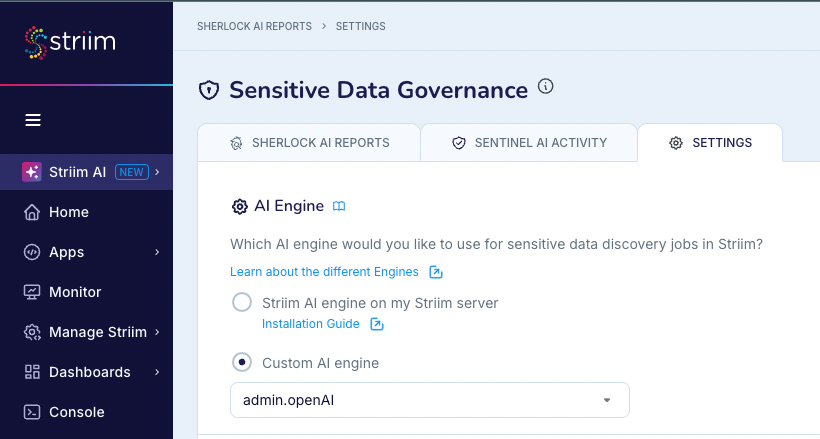
You can set up multiple AI engines in Striim. You can find the list of your AI engines for the Striim AI features as follows:
In Vector Embeddings Generator from the Striim AI menu.
In Sensitive Data Governance, in the Settings tab.
Using the Striim AI engine
The following are required for the Striim AI engine:
A minimum of 16GB of RAM.
Docker Desktop installed and running.
40GB of free disk space available in Docker (in Docker Desktop, see Preferences > Resources > Disk image size).
To install Striim AI:
In a terminal or command prompt, pull the Docker image from Docker Hub.
docker pull striim/striimai:latest
Run the Docker image.
docker run -d -p 9000:9000 striim/striimai:latest
If the machine has GPUs, include
--gpus all.docker run -d -p 9000:9000 --gpus all striim/striimai:latest
By default, the image uses port 9000. If necessary, you can map to a different port. The following example maps to port 9001:
docker run -d -p 9001:9000 striim/striimai:latest
If you did not use the default port 9000, or the Docker container is not running on localhost, edit
startUp.properties, changeStriimAIServiceAddressto the correct IP address and port, and restart Striim. The following example uses port 9001 on localhost:########################## # Striim AI Settings ########################## StriimAIServiceAddress = localhost:9001
You can also add multiple servers as follows:
StriimAIServiceAddress = localhost:9000,localhost:9001
Look in the Docker Desktop Dashboard and make sure that the Striim AI container is running. The container may take a few minutes to start. Once it is running, you can use Striim's AI features.
If you move Striim AI to a different IP address or port, enter the following command in the Striim console to update the Striim AI connection profile:
CREATE OR REPLACE CONNECTIONPROFILE System$PIIGlobal.striimAICP type striimAICP
  ( striimaiserver: 'localhost:9002'; );
Using an OpenAI or Vertex AI engine
To configure a custom OpenAI or Vertex AI engine:
In the Striim AI menu, select Sensitive Data Governance.
Select the Settings tab. The default engine is Striim AI engine on my Striim server.
Select Custom AI engine, and then select New.
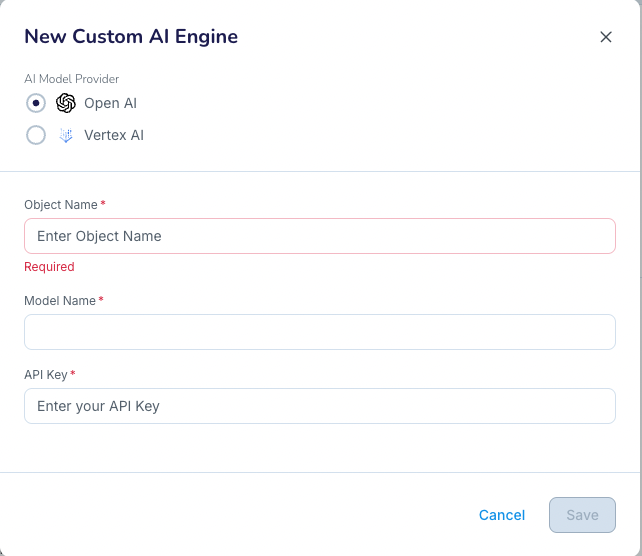
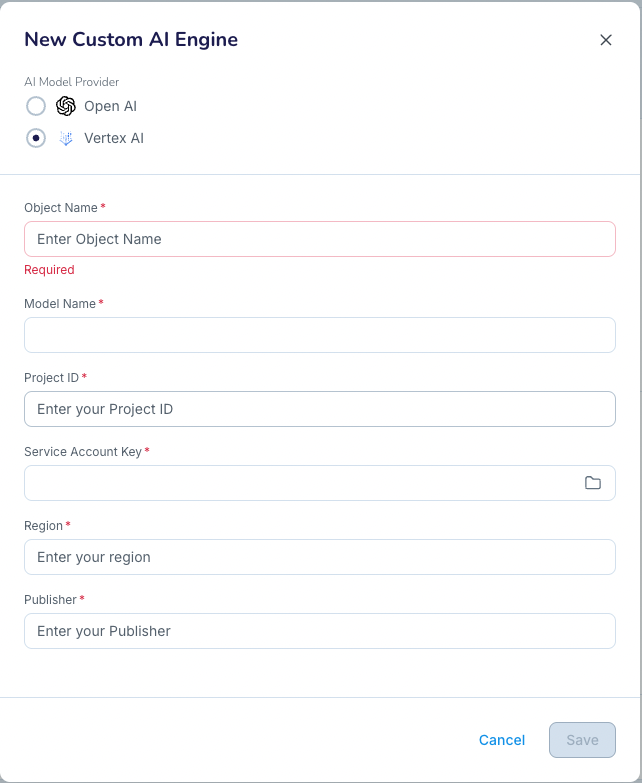
Choose OpenAI or Vertex AI as the AI model provider.
Configure the following settings:
For OpenAI:
Object name
Model name
API key
For Vertex AI:
Object name
Model name
Project ID
Service account key
Region
Publisher
Click Save.
You can now select the engine from the Custom AI menu for sensitive data discovery.
Changing the default AI engine
Changing the default AI engine does not interrupt Sherlock AI reports or applications containing a Sentinel component that are already running. Each continues to use the AI engine it was initialized with. Sherlock AI reports that you launch and applications that you deploy after the change use the new default engine.
Limitations on engine selection
The following are limitations on engine selection:
When you use Vertex AI with sources that contain tables that have more than 10 fields, Striim may encounter a token limit exceeded exception from Vertex AI.