Table selection in Flow Designer
This topic explains how to select the tables that a source adapter reads when it connects to a relational database, so that Striim captures data only from the tables you want. When you configure a source adapter in the Flow Designer, you specify the source tables in the adapter's Data Selection section. You can select the source tables using visual table selection for supported sources and using list-mode or text-field table selection for all sources. Additionally, when you use a Database Reader, you use a single query or multiple labelled queries to select data from supported sources.
Method | Supported relational sources and adapters | |
|---|---|---|
1 | Visual table selection |
|
2 | List-mode table selection |
|
Text-field table selection |
| |
3 | Query-based table selection |
|
Visual Mode table selection
For supported relational sources, instead of typing table names and wildcard patterns, you can browse the schemas and tables in the source database and select the ones you want the adapter to read. Visual table selection reads the list of schemas and tables from the source; it does not read table data. You can also switch to list-mode selection when you need pattern matching.
Use visual table selection to see what the adapter will read, to reduce errors caused by mistyped names, and when you are not certain of the exact schema or table names in the source database. You can change the table selection when editing the application.
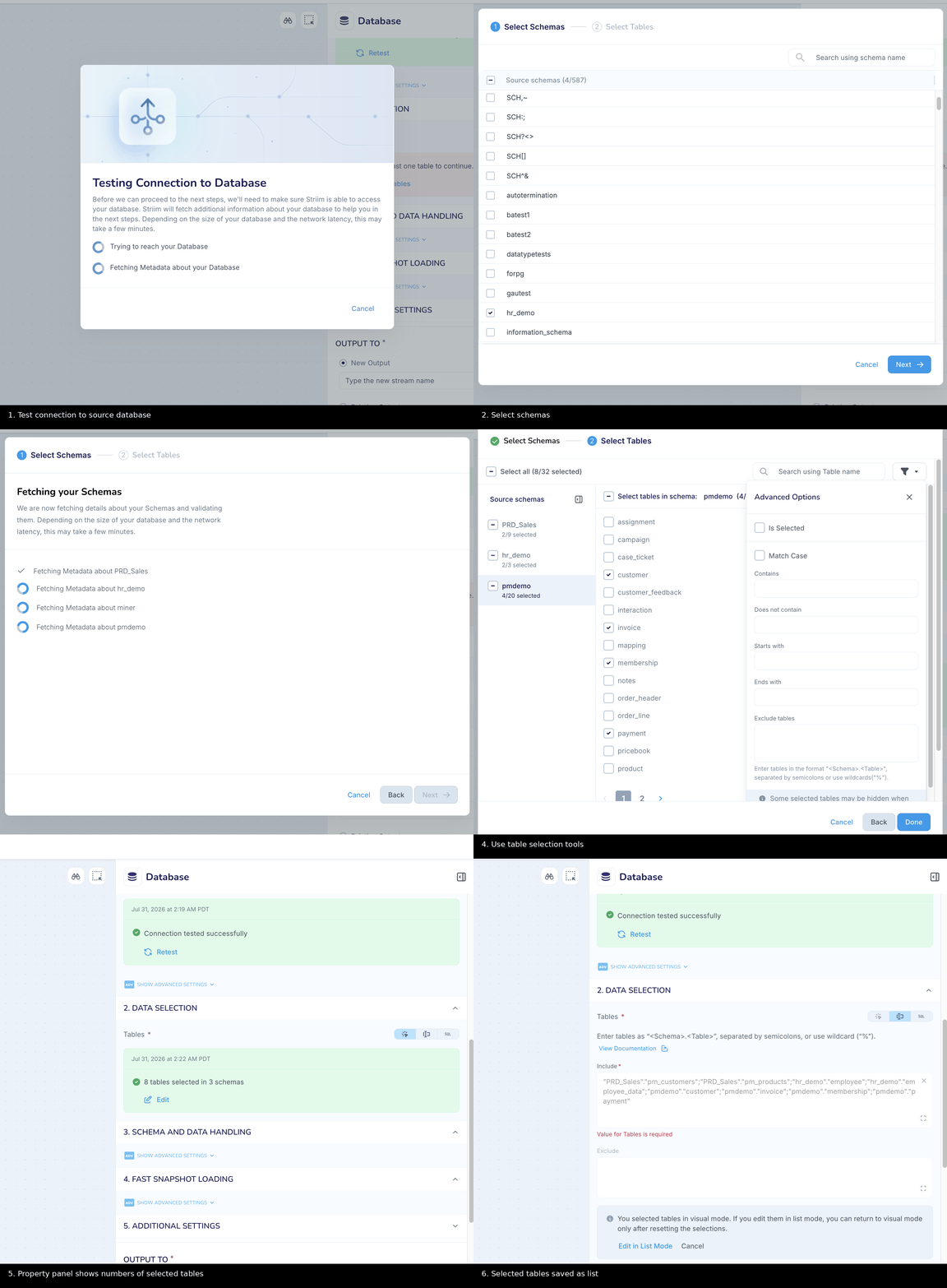
To use visual table selection to browse tables, Striim must be able to connect to the source database, so you must first select a connection profile or specify valid connection properties for the source adapter. Then follow these steps:
Under Data Selection, confirm that Tables is set to visual mode, then click Select Tables.
Select the schema or schemas that contain the tables to be read, then click Next.
Select the tables to be read, then click Done. Use Search using Table name to find a specific table, or Select all to select every table in the selected schemas.
Table selection is complete. Striim shows the number of tables and schemas selected. To revise the selection, click Edit.
The selected tables are stored as a semicolon-separated list, with each table represented as “<Schema>”: “<Table>”.
List-mode and Text-field table selection
You can also specify tables as text strings, either explicitly or using a wildcard pattern.
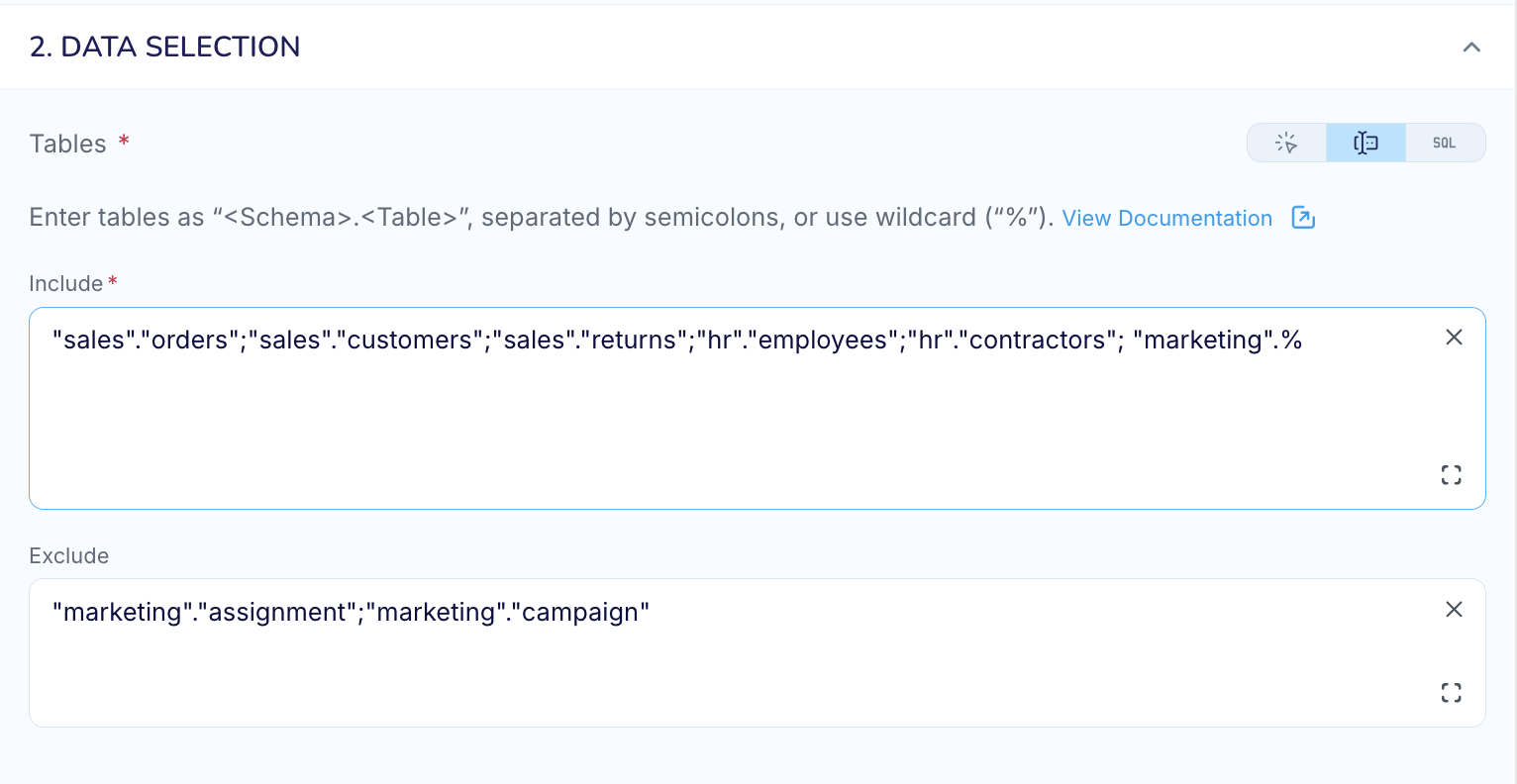
You can specify the tables to be read under Tables or Include (based on your source). Each table name must be specified as “<Schema>”:“<Table>”. You can also use the wildcard character (%) to specify your table selection. If you do not want Database Reader to read a table, you can list them under Exclude.
Here are some generic examples of table selections using text strings. For exact syntax, see the Tables property in the Programmer’s Reference for the source you are using.
Use case | Example: Table or Include | Example: Exclude |
|---|---|---|
Read 4 named tables from 3 named schemas | “sales.orders”; “sales”.“customers”; “hr”.“employees”; “marketing”.“campaign” | |
Read 3 named tables from 2 named schemas, and all tables from a 3rd schema | “sales.orders”; “sales”.“customers”; “hr”.“employees”; “shipping”:% | |
Read all tables from a schema, but exclude 2 named tables | “marketing”.% | “Marketing”.“expenses”; “marketing”.“campaign” |
Read all tables from all schemas | % |
Sources that support visual table selection
With a source that supports visual table selection, your selected tables are saved as a read-only list. You can modify your table selection using the visual method, and the read-only list will reflect your changes.
If you want to edit the selection as text, select the List Mode tab and click Edit in List Mode. Note that if you save changes in List Mode, to switch back to Visual Mode, you will have to discard your current selection and start all over again.
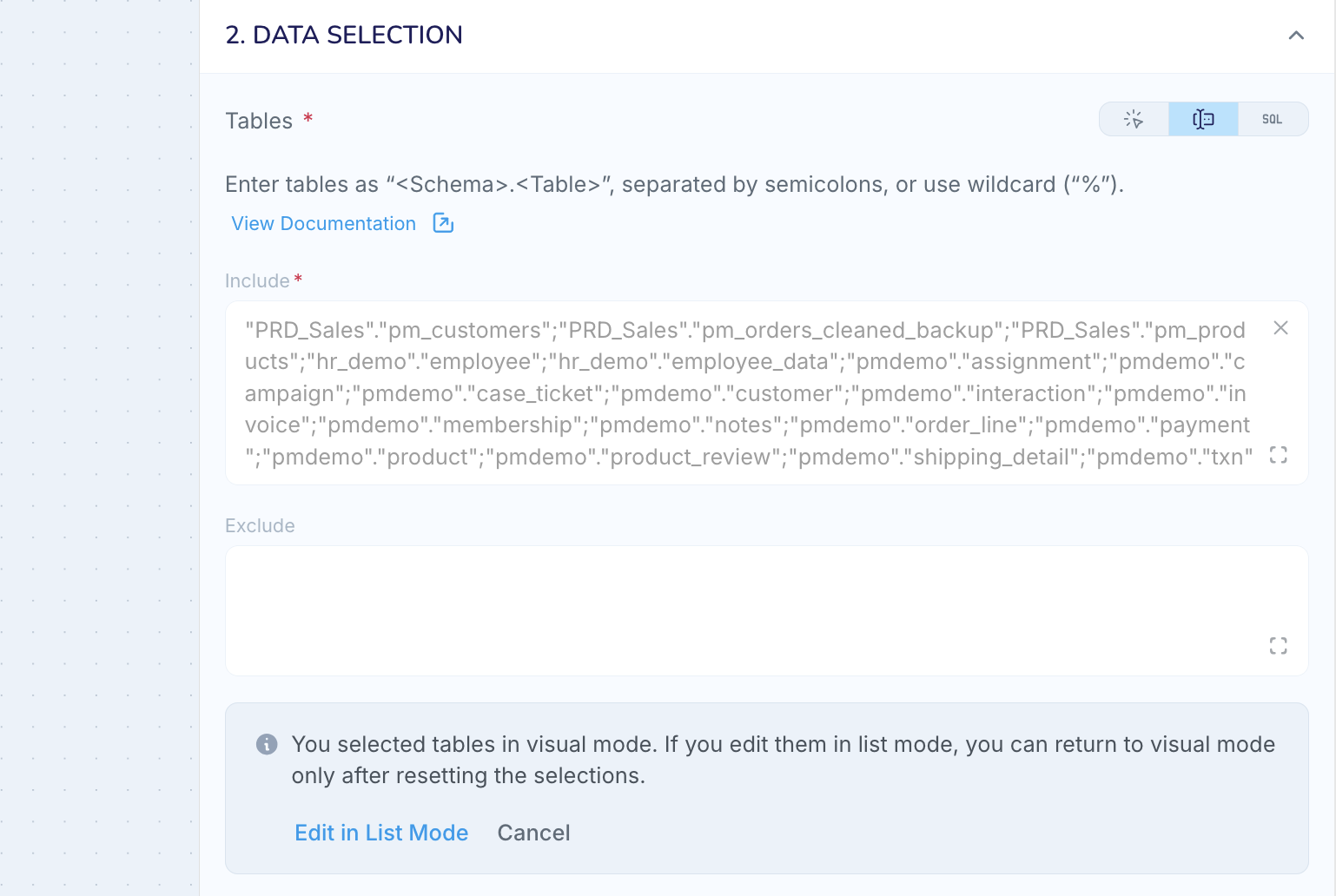
In List Mode, you can specify the tables to be read under Include, and tables that the adapter should not read under Exclude, as shown below.
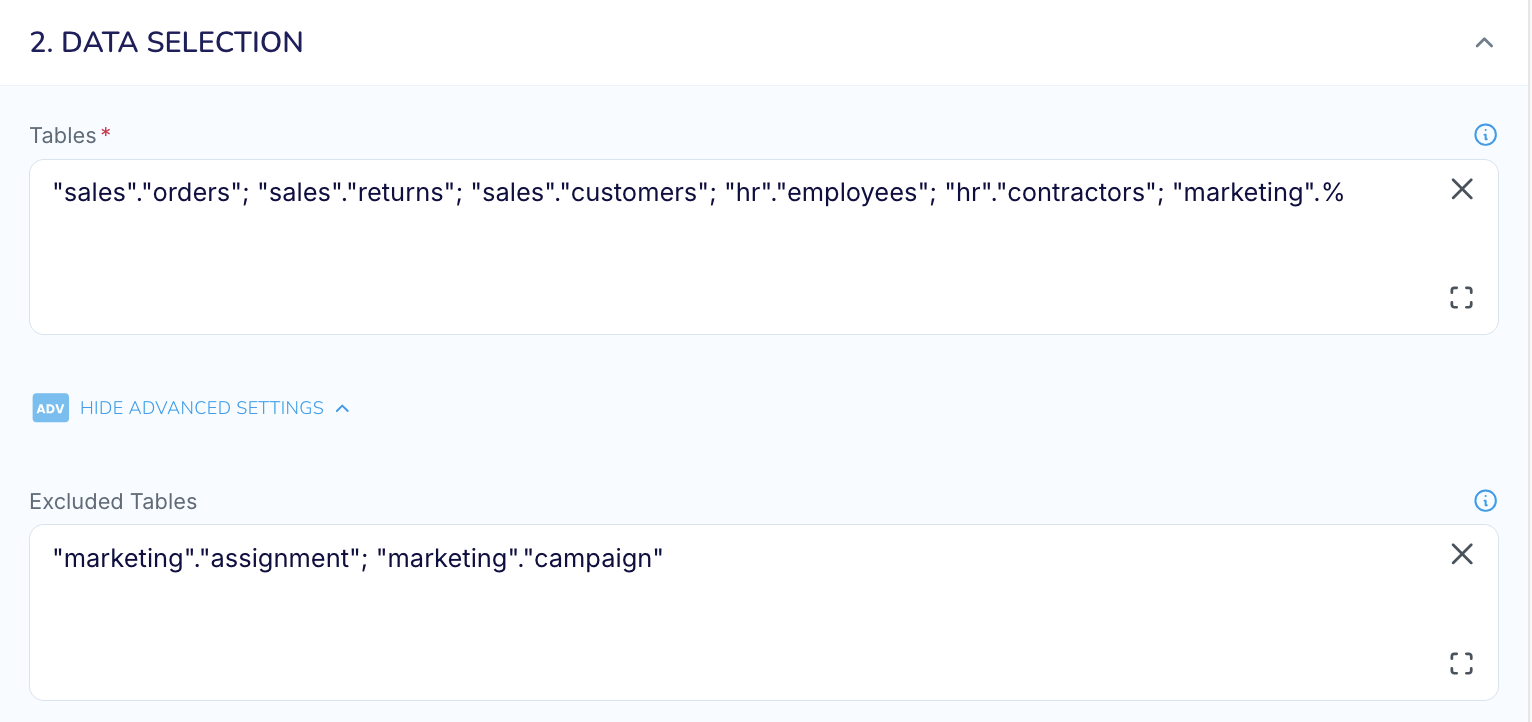
All other supported sources
You can specify the the tables to be read under Tables, and tables that the adapter should not read under Exclude Tables, as shown below.
Query-based table selection
With the Database Reader, you can specify a single SQL SELECT statement specifying the data to return. You may query tables, aliases, synonyms, and views. Refer to the <Database Reader programmer's reference> for more information.
For supported sources, the Database Reader supports Fast Snapshot Loading where you can specify multiple SQL SELECT statements to read data.
Selection priority
In the Flow Designer, if you configure more than one table selection method for the same Database Reader, it will implement only one method, based on priority, as noted below.
Priority | Table selection method | Applies when |
|---|---|---|
1 (highest) | Single query or multiple queries | One or more queries are defined. |
2 | List mode | The table selection is specified as a list of table names, or using wildcards, or a combination of both, and no queries are defined. Note that tables selected visually are saved as a list. |
Note
In TQLl, the MultiQuery and Talbles properties cannot be used together. Use either MultiQuery or Tables, not both. If you import TQL that uses both methods, the import fails with the following message: MultiQuery and Tables properties cannot bel used together. Please use either MultiQuery or Table property..