Configuring Validata AI
This topic describes how to configure and launch Validata AI. Validata AI is an AI-powered assistant that connects to cloud-based AI providers for AI processing.
Prerequisites
Validata AI can be configured from the AI Providers tab in your Validata Cloud Enterprise service details.
Before configuring Validata AI, ensure the following requirements are met:
A subscription to Validata Cloud Enterprise or active trial.
For cloud LLM configuration: an API key from your chosen provider (OpenAI or Google Gemini).
AI provider options
Validata AI supports multiple AI providers. Select the option that best meets your requirements for capability, cost, latency, and privacy:
Provider | Requirements | Notes |
|---|---|---|
OpenAI | API key required | Cloud-based; requires outbound internet connectivity. |
Google Gemini | API key required | Cloud-based; requires outbound internet connectivity. |
Note
To integrate with additional AI providers not listed above, contact Striim Support.
Configuring Validata AI in Validata Cloud
To configure Validata AI from the Validata Cloud console:
Go to the Services page and select your Validata Cloud Enterprise service.
Select the AI Providers tab.
Check Enable 3rd-party AI providers.
From the Select AI Provider dropdown, choose your provider (OpenAI, Google Gemini).
From the Select Model dropdown that appears after selecting the provider, choose the model to use.
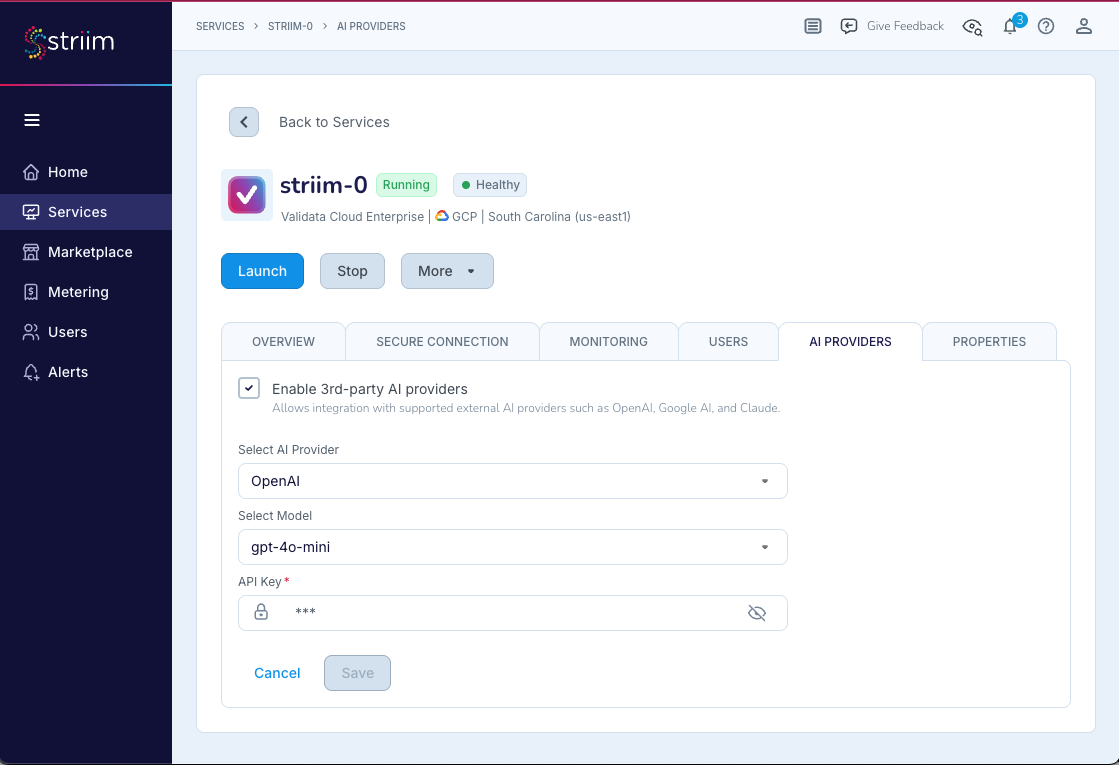
Enter your API Key.
Select Save.
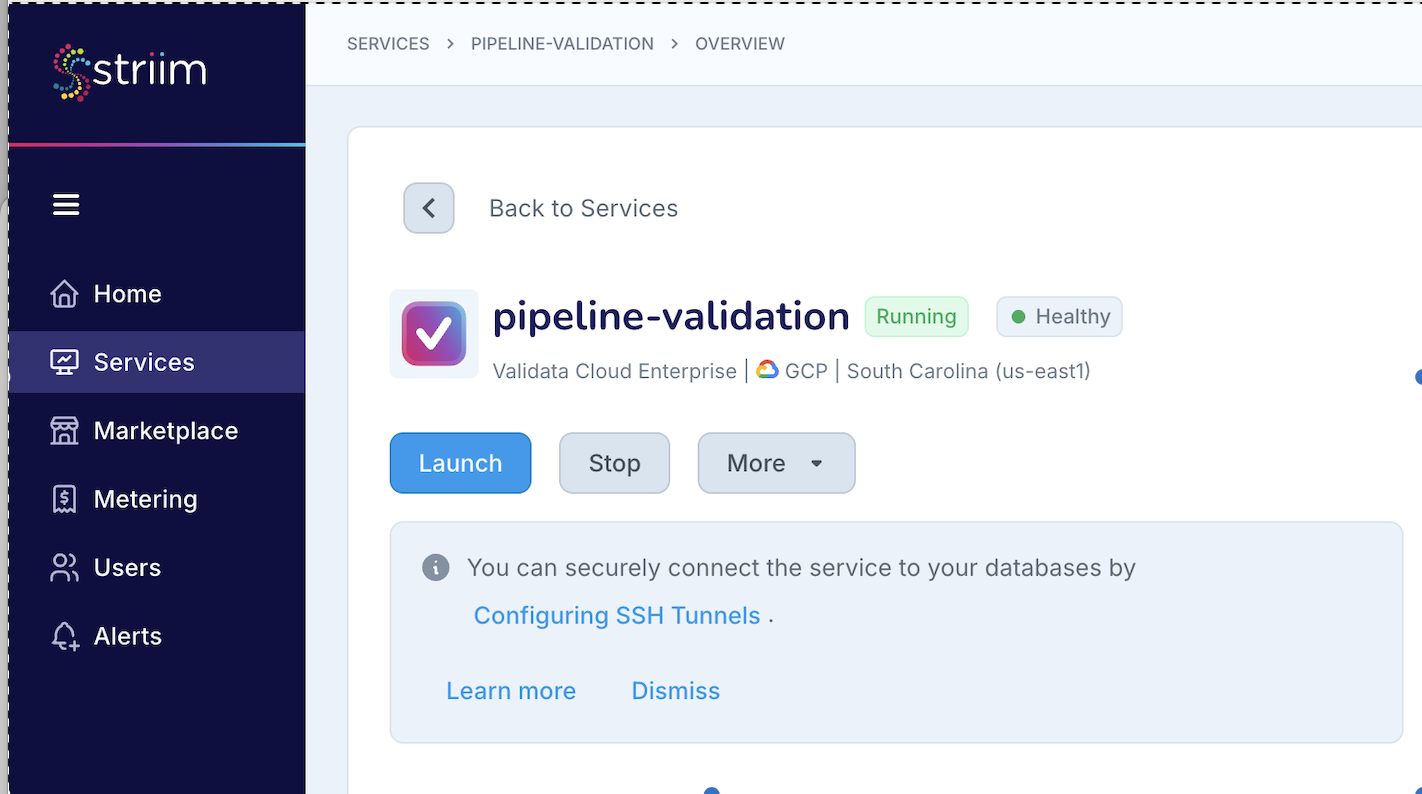
After saving, launch your Validata Cloud service, then start Validata AI from the Validata UI.
Select Launch either from the services list (next to the service name) or from the service details page.
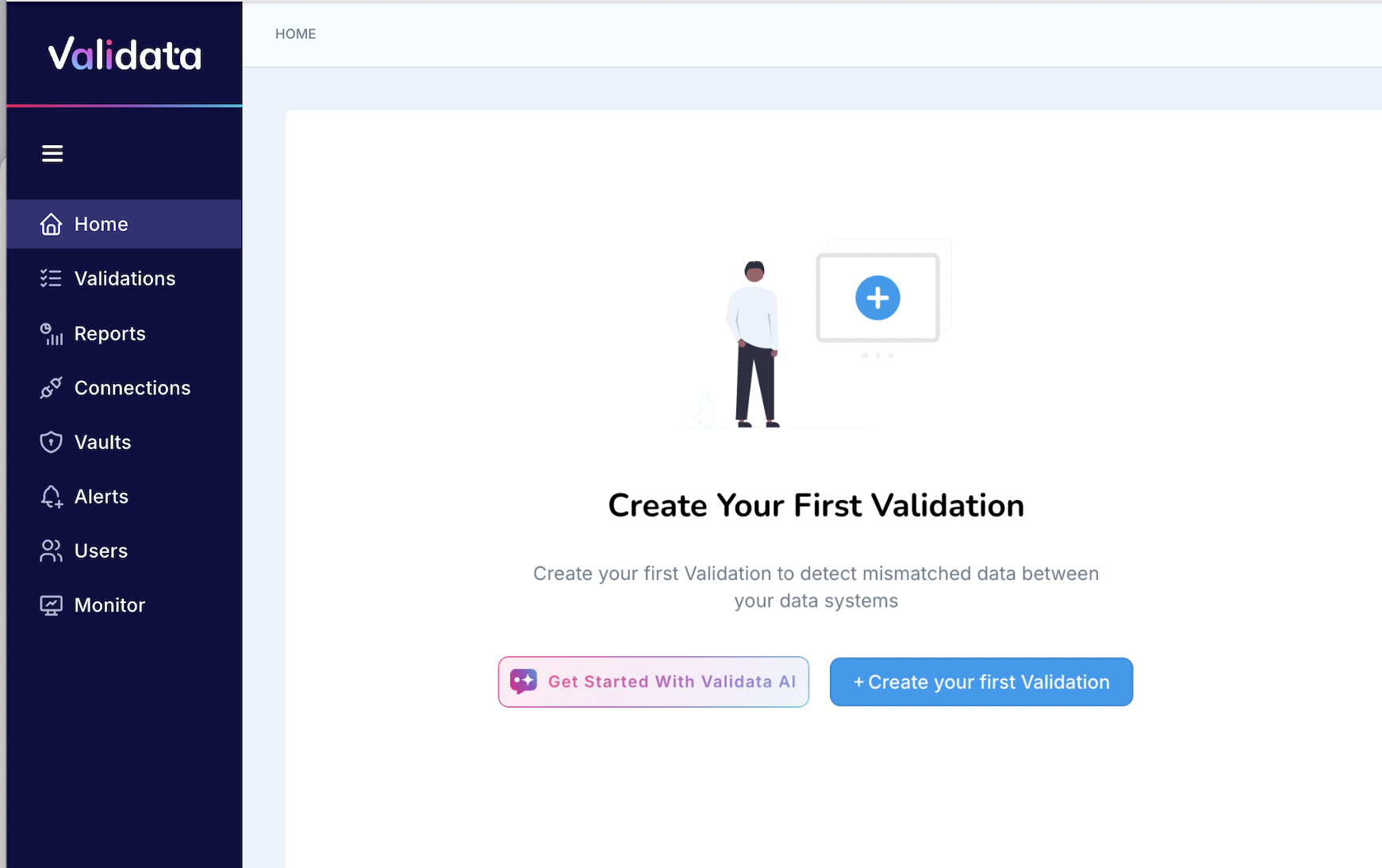
Select Get Started with Validata AI, or select Validata AI at the top right.
See Validata AI for usage instructions.
Troubleshooting
This section describes common issues and their resolutions.
Configuration issues
Issue | Resolution |
|---|---|
Invalid API key error | Re-enter the API key and verify that the key has the required permissions and quotas on the provider's platform. |
Security considerations
Follow these security best practices when configuring Validata AI:
API keys are encrypted at rest using AES-256 encryption and are never displayed in plain text after initial entry.
Only users with administrator privileges can modify Validata AI configuration settings.
When using cloud LLM providers, review the provider's Terms of Service regarding data privacy, data retention, and usage policies.