AI Agents and features in Striim
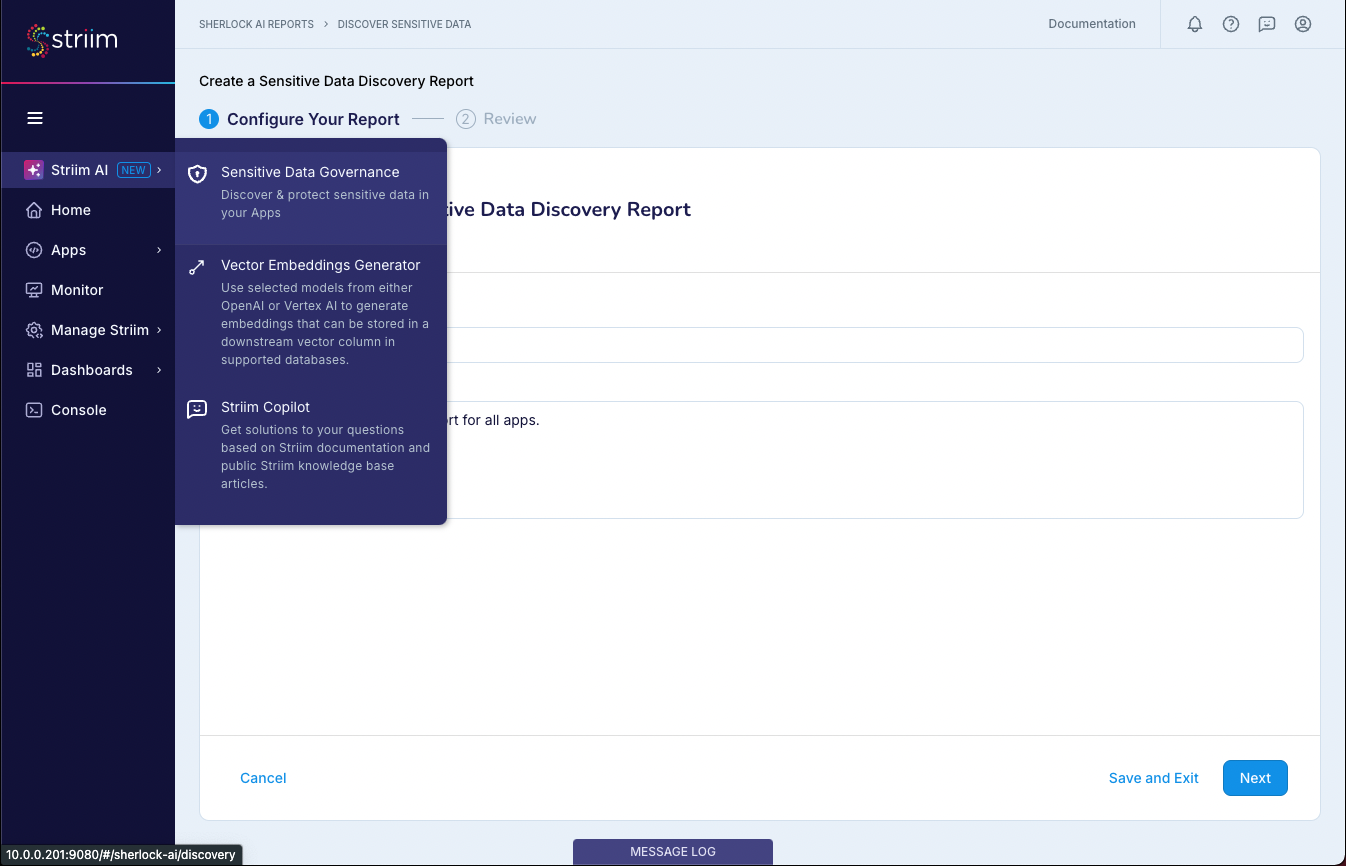
Striim provides generative AI capabilities under the umbrella of AI Agents. You can add these agents to your application flows using Striim's Flow Designer. Each agent enables a different kind of intelligence for streaming data pipelines.
Striim's approach to sensitive data governance includes two complementary agents:
Sherlock AI: examines your source data in real time, classifying and tagging sensitive fields across streaming pipelines using large language models (LLMs).
Sentinel AI: real-time sensitive data detection and protection agent.
The following AI Agents are available from the Flow Designer:
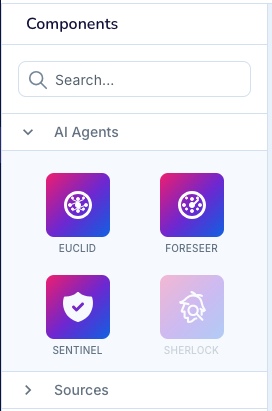
Euclid (Vector embeddings): enables semantic search, categorization, and enhanced analysis using vector representations.
Foreseer (Anomaly detection): provides time series forecasting and anomaly detection for real-time monitoring and predictive analytics.
Sentinel: offers real-time sensitive data detection within streaming applications.
Striim also offers Striim Clara, a conversational AI agent that helps you create, manage, and monitor your Striim applications and that answers questions from Striim's documentation. Unlike the AI Agents above, which run as components inside your application flows, Clara works alongside you in the Striim interface, performing operations on your Striim resources through natural language conversation.
Enabling Striim AI features for Striim Cloud
Before you use the AI Agent features in Striim Cloud, an administrator must enable them for your running services. These features consume additional resources and may incur additional costs, as noted in the interface.
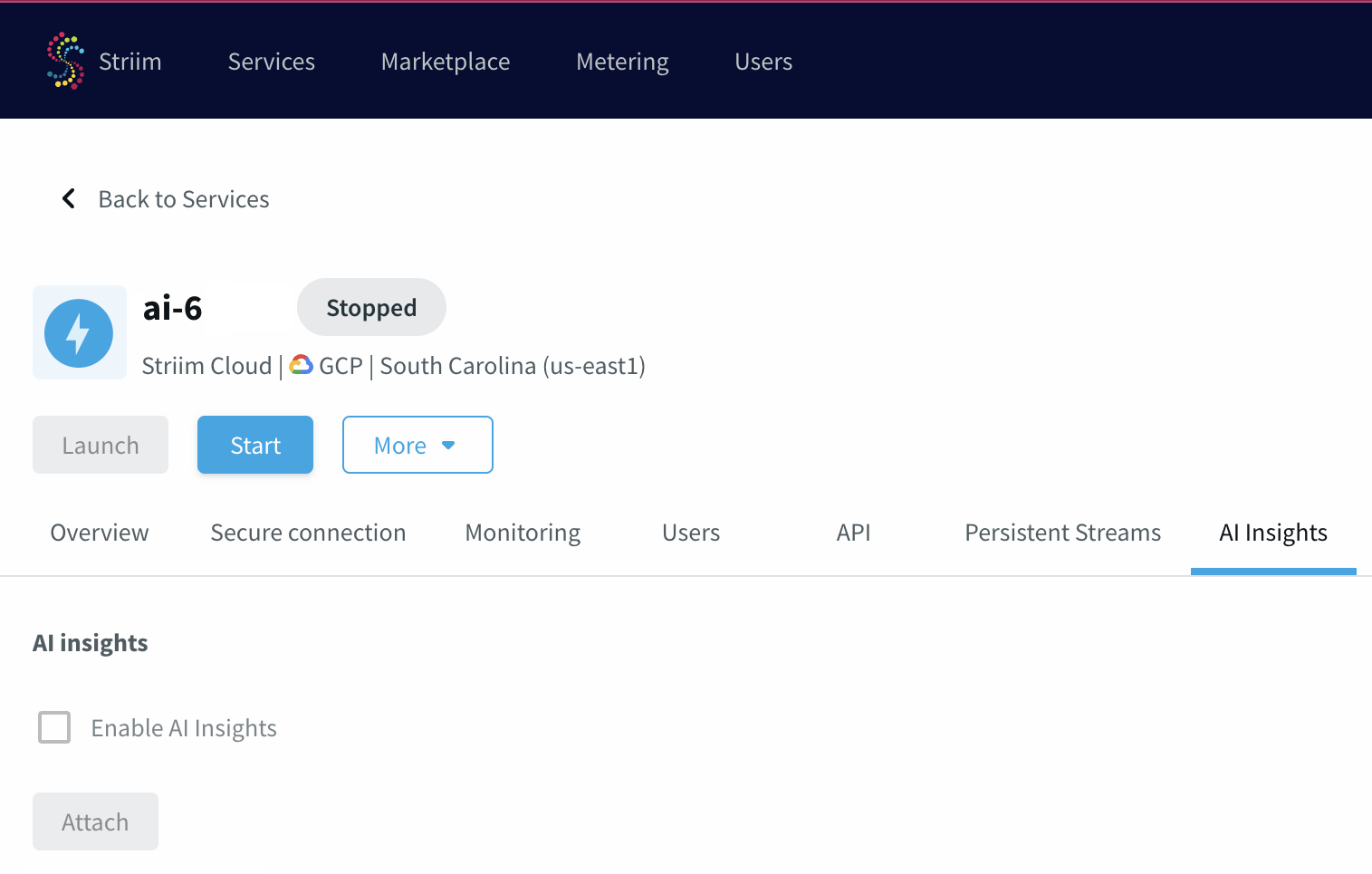
To enable AI features for a Striim Cloud service:
Log in to your Striim Cloud account as an administrator and select a running service.
Navigate to the AI Insights tab for your service.
Select the Enable AI Insights checkbox, then click Attach.
Once the feature is enabled, the status for the service under the AI Insights tab shows as Active.
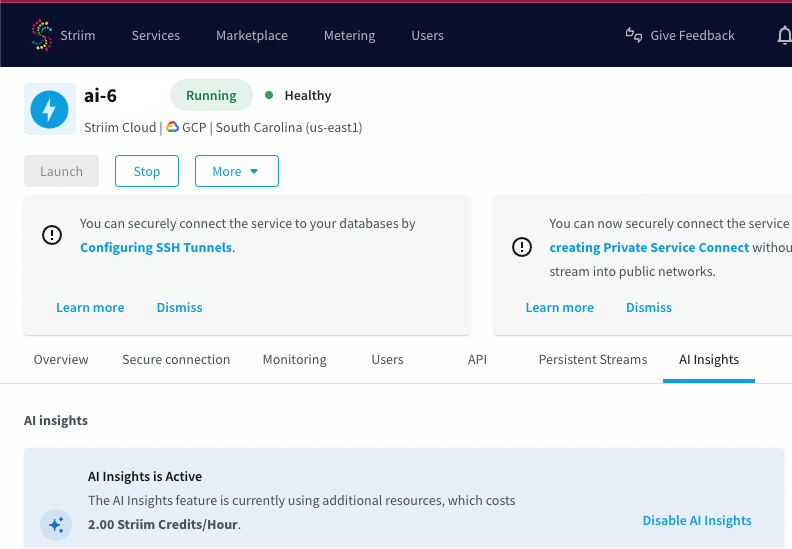
If needed, you can disable the AI features from the same tab by selecting Disable AI Insights.
Once the features are enabled, you can configure AI Agents within your application flows using the Flow Designer canvas.