Managing custom alerts
See also Managing Smart Alerts and Sending alerts from applications.
Global Administrators can create custom alerts for servers, Forwarding Agents, applications, connection profiles, and pipeline components. They can also grant non-admin users permission to create and manage custom alerts. See Allow non-admin users to manage custom alerts.
A non-admin user with this permission can create custom alerts only for applications and pipeline components to which the user has read access. Server and Forwarding Agent alerts remain restricted to Global Administrators.
Striim can deliver custom alerts by email, to a Slack or Microsoft Teams channel, or through the Alerts menu in the upper-right corner of the Striim web UI. Alerts also appear in the Message Log at the bottom of the web UI. Before you use email, Slack, or Microsoft Teams for alert delivery, you must configure the applicable delivery mechanism. See Configuring alert delivery mechanisms for instructions.
Available alert conditions
The alert conditions available in Alert Manager depend on the selected resource. Some options are configurable metrics for which you specify a comparator and threshold. Other options are presets that provide a predefined comparator and threshold.
Servers and Forwarding Agents
These conditions are available only to Global Administrators:
CPU Rate: A configurable condition based on CPU utilization.
CPU Rate is greater than 90%: A preset based on CPU Rate.
Node Memory: A configurable condition based on JVM free memory, in bytes, as reported by
java.lang.Runtime.freeMemory().Node Memory is less than 1 GB: A preset based on Node Memory.
Applications (see Application states)
App Deployed
App Halted
App Quiesced
App Stopped
App Terminated
Connection profiles (see Connection profiles)
Refresh Token Expiring: Currently supported only for Snowflake. Striim generates the alert when 80% of the token's time to live has elapsed. For example, if the token expires after ten days, Striim generates the alert after eight days.
Components
Caches
Cache Size
Event Rate
Event Rate is zero
Local Hits
Local Hits Rate
Local Misses
Remote Hits
Remote Misses
CQs
Input Rate
Input Rate is zero
Output Rate
Output Rate is zero
Total Events Input
Total Events Output
Sources
Input Rate
Input Rate is zero
Source Input: Total number of events received by the source.
Streams
Event Rate
Event Rate is zero
Total Number of Events
Targets
Event Rate and Target Rate: Equivalent labels for the target throughput metric.
Event Rate is zero
Target Rate is zero
Target Acked: Total number of events acknowledged by the target. Not all target adapters publish this metric.
Target Output: Total number of events sent to the target.
WActionStores
Event Rate
Event Rate is zero
Input Rate
Total Number of WActions
WActions Created Rate
Windows
Input Rate
Input Rate is zero
Range Tail
Total Number of Events
Window Size
Window Size is zero
Create a custom alert
Create a custom alert when you need to monitor a condition that the Smart Alerts do not cover, or when you need to monitor a single resource rather than all resources of a given type.
In Alert Manager, select Create a new alert.

From Create Alert On, select the server, Forwarding Agent, application, or component to monitor. Type the beginning of the resource name to filter the list. To display servers, enter
s. To display Forwarding Agents, entera.In Alert Name, enter a descriptive name for the alert.
Select an Alert Condition.
If displayed, select an Alert Comparator. Use
LIKEonly when Alert Value is a string.If displayed, enter an Alert Value.
Note
The maximum CPU Rate is 100 multiplied by the number of CPU cores. For example, a four-core system has a maximum CPU Rate of 400. To generate an alert at 90% of that maximum, enter
360.Optionally, specify a Snooze After Alert interval. The snooze interval determines how long Striim waits before sending another notification for the same persistent condition. For example, a 10-minute interval limits notifications to no more than six per hour.
Note
Use a longer snooze interval to reduce repeated notifications and prevent alert fatigue.
Select the required delivery options: email, Slack, Microsoft Teams, or In App. For email, Slack, or Microsoft Teams, specify the recipient or channel when prompted.
Optionally, turn on Enable Alert to activate the alert immediately after it is saved.
Select Save.
Modify a custom alert
In Alert Manager, select the tab that contains the alert. For example, select Nodes for server and Forwarding Agent alerts, Apps for application alerts, or Components for component alerts. Select the alert, make the required changes, and then select Save.
Allow non-admin users to manage custom alerts
By default, only Global Administrators, who are members of the Global.admin group, can create and manage custom alerts. Delegating alerting lets application owners manage alerts for the pipelines they are responsible for, without granting them full administrative access to Striim.
To grant alerting permission to a non-admin user:
In the Striim web UI, select Manage Striim > Users + Roles.
Locate the user and turn on the Alerts toggle.
The Roles and Permissions column updates to show that alerting permission has been granted. In the following example, alerting is enabled for DataDev and disabled for DataStriimExpert.
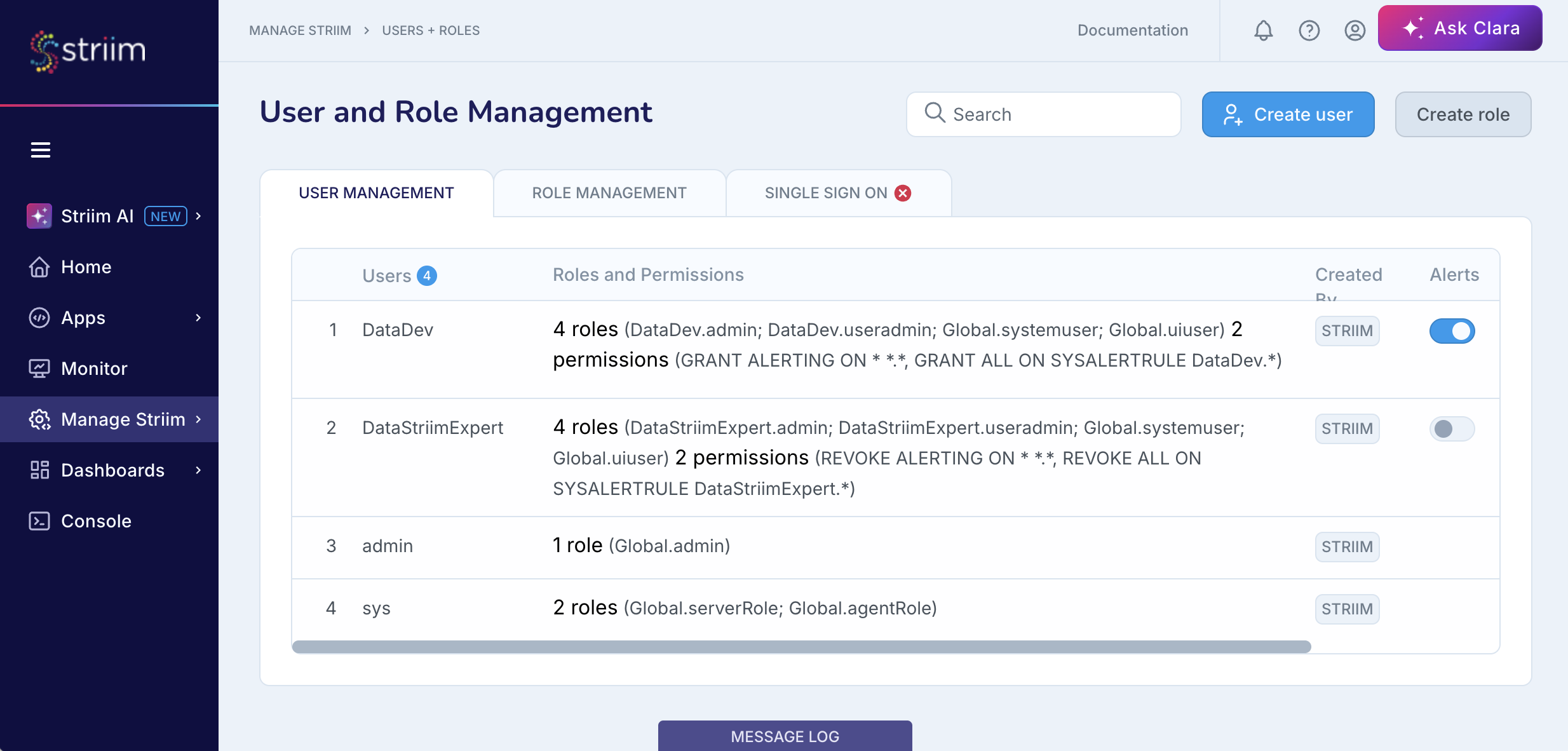
To grant alerting permission automatically to newly created users, add EnableUserAlerting=True to startUp.properties, and restart Striim. This property affects only users created after it is enabled. It does not change the permissions of existing users.
Caution
Do not use the Striim console to grant or revoke alerting permission. Use the Users + Roles page in the Striim web UI.
A non-admin user with alerting permission can create and manage custom alerts for applications and components in their personal namespace. The user can also create and manage custom alerts in other namespaces, or for specific applications, to which they have read access. Only Global Administrators can create or manage custom alerts for servers and Forwarding Agents, which appear under Nodes in Alert Manager.