Managing Smart Alerts
Smart Alerts are predefined, system-wide alerts for common operational conditions. Each Smart Alert monitors a condition defined by Striim across all applicable resources, such as all servers, Forwarding Agents, applications, sources, or targets. The Smart Alerts described in this section are enabled by default.
By default, Smart Alert notifications appear in the Alerts icon in the upper-right corner of the Striim web UI and in the Message Log at the bottom of the UI. These in-product notifications are visible only to Global Administrators (members of the Global.admin group).
Global Administrators can enable or disable Smart Alerts, adjust supported settings such as thresholds and snooze periods, and configure delivery by email, Slack, or Microsoft Teams. Notifications sent through these external channels are delivered to the configured recipients or channels and are not limited to Global Administrators.
Alert name | Alert condition (default) | Notes |
|---|---|---|
Agent_HighCpuUsage | The Forwarding Agent average per core CPU time used by its Java process is over 90%. | By default, an alert will be sent every four hours until the condition is resolved. |
Agent_HighMemoryUsage | The Forwarding Agent's JVM free heap size is below 10% of the maximum heap size (Xmx). | By default, an alert will be sent every four hours until the condition is resolved. |
Agent_NodeUnavailable | The Forwarding Agent is no longer connected to the cluster. | |
Application_AutoResumed | The application resumed automatically (see Automatically restarting an application). | |
Application_Backpressured | One or more streams in the application have been backpressured for more than 10 minutes (see Understanding and managing backpressure). | By default, an alert will be sent every four hours until the condition is resolved. |
Application_CheckpointNotProgressing | The recovery checkpoint has not advanced for more than 30 minutes, even though the data stream received at least one event during that period (see Recovering applications). | By default, an alert will be sent every four hours until the condition is resolved. |
Application_Halted | The application has halted (see Application states). | |
Application_Rebalanced | Striim moved the application to a different server (see Automatic load rebalancing). | |
Application_RebalanceFailed | Striim could not move the application to another server during a rebalancing operation (see Automatic load rebalancing). | |
Application_Terminated | The application has terminated (see Application states). | |
ConnectionProfile_TokenIsExpiring | 80% of the token time to live has elapsed. For example, if the token expires after ten days, the alert will be sent after eight days. | Works only with Snowflake OAuth authentication methods. |
Server_HighCpuUsage | The server average per core CPU time used by its Java process is over 90%. | By default, an alert will be sent every four hours until the condition is resolved. |
Server_HighMemoryUsage | The server's JVM free heap size is below 10% of the maximum heap size (Xmx). | By default, an alert will be sent every four hours until the condition is resolved. |
Server_NodeUnavailable | The server is no longer connected to the cluster. | |
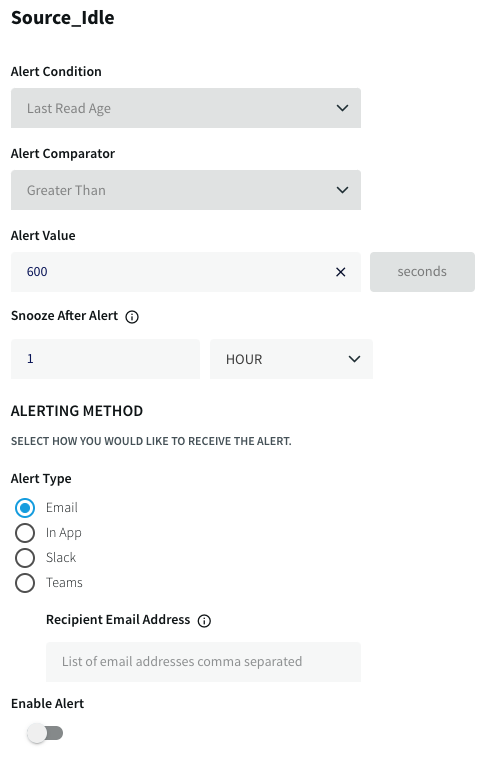
Source_Idle | It has been over 10 minutes since the source read an event. | By default, an alert will be sent every four hours until the condition is resolved. |
Target_HighLee | One or more events received by the target had an end-to-end lag greater than 10 minutes (see Monitoring end-to-end lag (LEE)). | By default, an alert will be sent every four hours until the condition is resolved. |
Target_Idle | It has been over 10 minutes since the target wrote an event. | By default, an alert will be sent every four hours until the condition is resolved. |
For information about OJet-specific alerts, see Runtime considerations when using OJet.
Modify a Smart Alert
The properties available for modification vary by Smart Alert.
alertMessage: Specifies the text of the alert notification. You can edit this property in the Striim console, but not in the Striim web UI.Variables in alert message: An alert message can include replacement variables in the format
{{variableName}}. When Striim generates an alert, it replaces each variable with the corresponding value from the alert definition or from the monitor event that is being evaluated. The following replacement variables are available:adapterName: Adapter name in the alert definition, for example,
FileReader.address: Address to which Striim sends the alert, for example,
somebody@example.com.alertName: Name of the alert, for example,
Application_CheckpointNotProgressing.alertValue: Threshold value defined in the alert condition, for example,
300.comparator: Alert condition comparator:
GT,LT,EQ, orLIKE.entityName: Actual component name in the monitor event, for example,
admin.PosApp.entityType: Component type, for example,
APPLICATION.medium: Alerting medium:
WEB,EMAIL,SLACK, orTEAMS.metricName: Metric name in the alert condition, for example,
LAST_CHECKPOINT_AGE.metricUnit: Unit in which the monitored metric is measured, for example,
seconds.metricValue: Actual metric value in the monitor event, for example,
543.objectName: Component name pattern in the alert definition, for example,
.*\.APPLICATION\..*.
alertValue: Specifies the threshold or match value that the alert evaluates. Its meaning depends on the alert:Integer: Specifies a numeric threshold for the monitored metric. The unit depends on the metric. For example, the value can represent CPU utilization as a percentage for a high-CPU alert, or end-to-end latency in seconds for a high-latency alert. The comparator determines whether the alert triggers when the metric is greater than, less than, or equal to this value.
String: Specifies text to match in the monitored message. For example, the value for
Application_Terminatedmight beApplication terminated.
comparator: Specifies how Striim compares the monitored metric againstalertValue. The supported comparison operators depend on the data type of the monitored metric:For integer values:
EQ(equals),GT(greater than), orLT(less than).For string values:
EQ(equals) orLIKE(matches when the specified string occurs anywhere in the value).
intervalSec: Specifies the snooze interval, in seconds. After Striim generates an alert, it waits for this interval before generating another notification for the same persistent condition.Note
Use a longer snooze interval to limit repeated notifications for persistent conditions and reduce alert fatigue.
isEnabled: Specifies whether the Smart Alert is enabled. The default istrue. Set it tofalseto disable the alert.alertType: Specifies the delivery method:WEB(default),EMAIL,SLACK, orTEAMS. For any delivery method other thanWEB, you must also specifytoAddress.Before you configure external delivery, complete the applicable setup:
For email, see Configure Striim to send email alerts.
For Slack, see Configure Slack to receive alerts from Striim.
For Microsoft Teams, see Configure Teams to receive alerts from Striim.
toAddress: Specifies the delivery destination. For email alerts, enter the recipient's email address. For Slack or Microsoft Teams alerts, enter the channel.
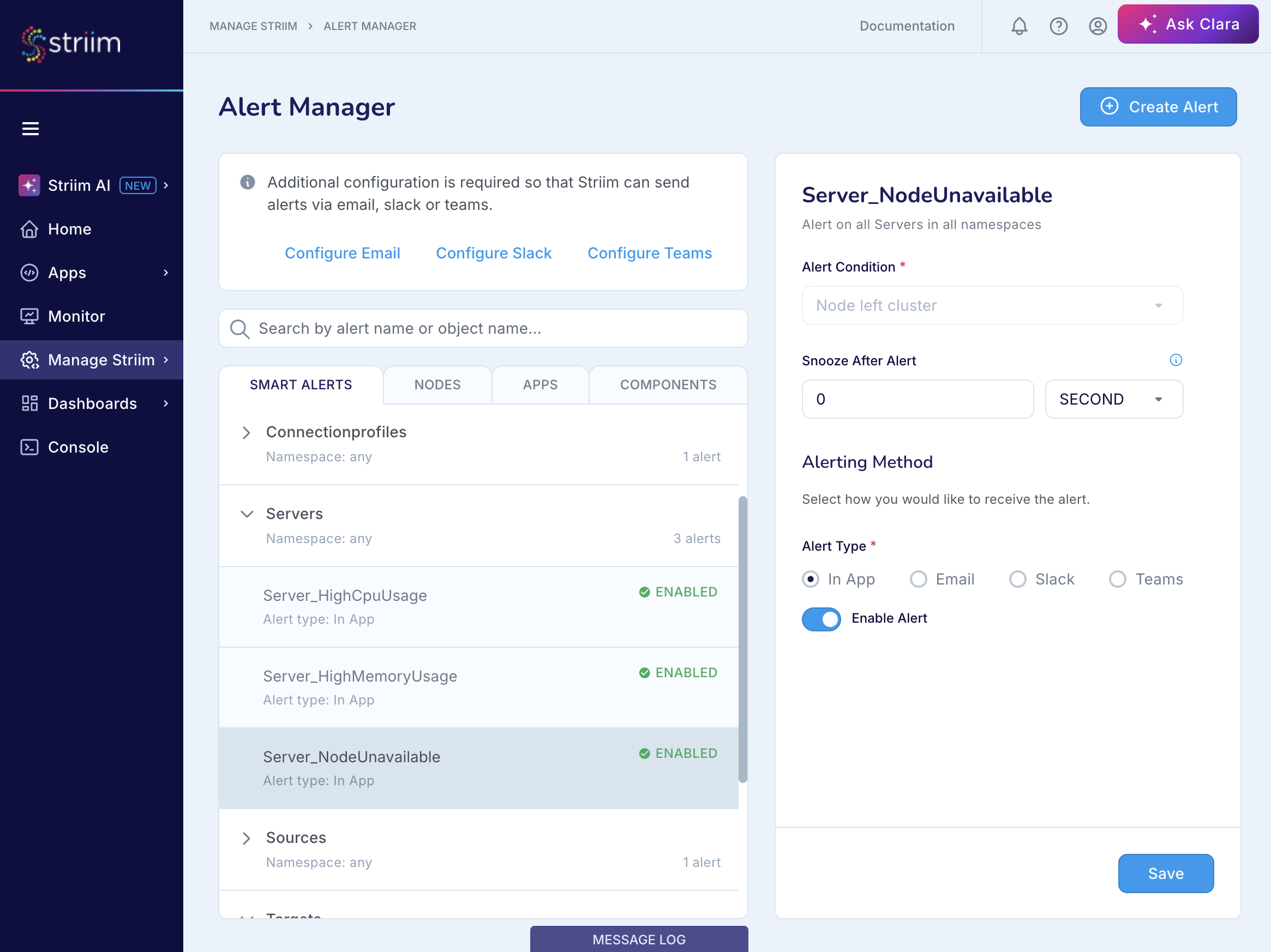
You can also view and edit some of these properties in Alert Manager in the Striim web UI. To open Alert Manager, select Manage Striim > Alert Manager, as shown in the following screenshot.
To view all properties of an alert, run the DESCRIBE command in the console. For example:
DESCRIBE smartalert Application_Terminated;
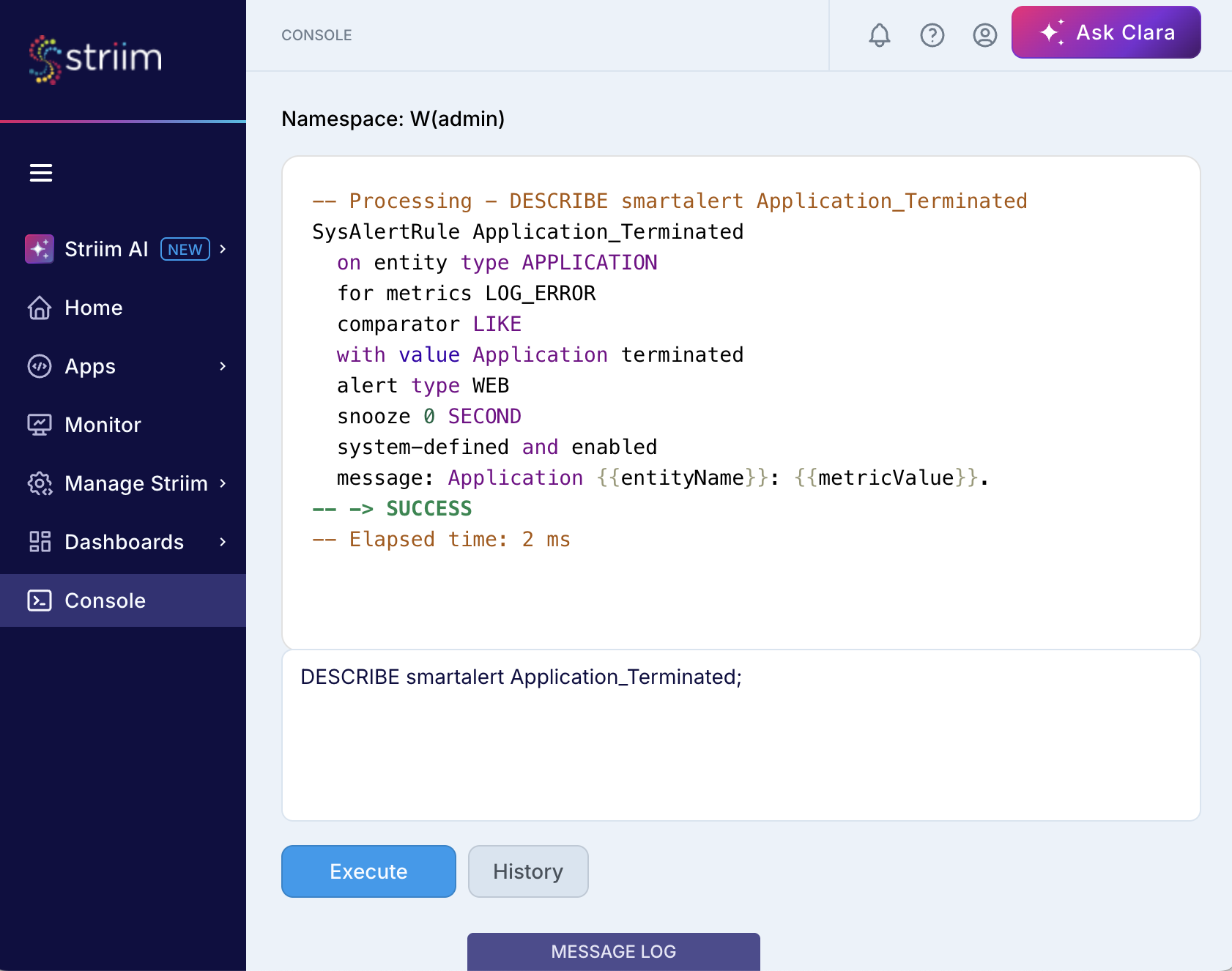
The property names shown in the DESCRIBE output map to the following parameters in the ALTER SMARTALERT command.
Property in DESCRIBE output | Parameter in ALTER SMARTALERT |
|---|---|
on | None. This property cannot be modified. |
for | None. This property cannot be modified. |
comparator | None. This property cannot be modified. |
with value |
|
alert type |
|
sending to |
|
snooze |
|
message |
|
enabled |
|
Modifying Smart Alert properties
To modify a Smart Alert, open Alert Manager and select the alert. The available properties depend on the selected alert.
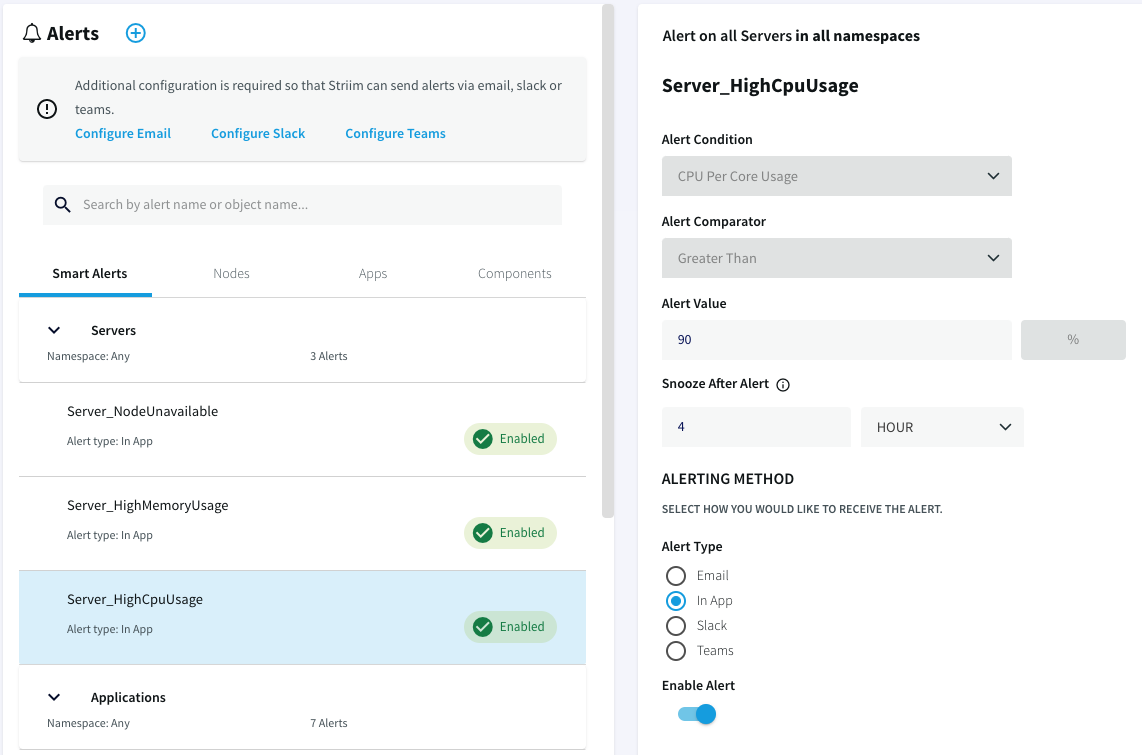
To change the alert type for
Application_Terminatedfrom in App to Email, change the Alert Type and specify the email address of the person to receive the alert: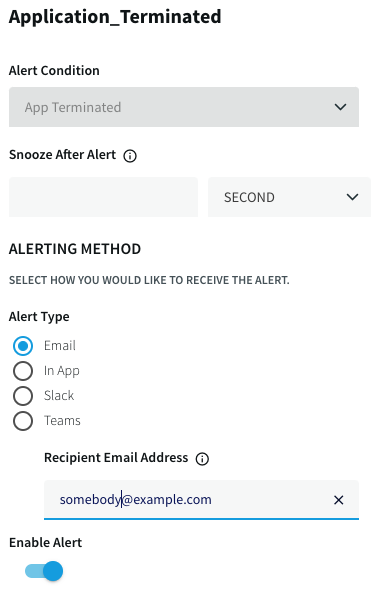
To change the alert interval (snooze) for
Source_Idleto an hour, set Snooze After Alert. This means alerts on this condition will be sent no more often than once an hour.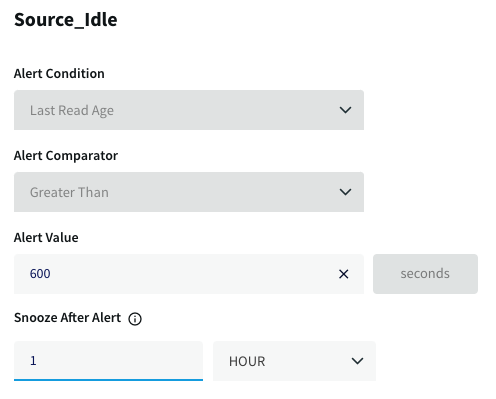
To disable
Source_Idlealerts, set Enable alert off: